AtmospheresExperience modes
One desktop, five atmospheres.
A mode changes how the desktop behaves right now: how much it moves, how dense the bar is, which widgets sit on the desktop and whether notifications interrupt you. It never replaces your layout or your theme.
◉Released as packagesReleased as packages in 0.2.0-preview36 (hornero-shell 1.3.5-1). The current install ISO (0.2.0-preview32) does not include it: after installing, or on an existing install, update the AUR packages. How to update
The five modes
Each schematic draws the mode’s fields (motion, bar, desktop) as the project documents them. They are drawings, not screenshots: real captures of each mode follow below.
CH 01 · Preferred layout: Minimal Top
Focus
Less noise: one window and you.
- Reduced motion and an icon-only bar.
- Holds notifications while active and keeps them quiet over fullscreen windows.
- No glow and no desktop widgets.
- Motion
- Reduced
- Bar
- Icons only
- Desktop
- Empty
Schematic — not a screenshot CH 02 · Preferred layout: Cockpit
Everyday
The mode a fresh install starts in.
- Cockpit with standard motion and values on the bar.
- Nothing is held and nothing is hidden.
- Motion
- Standard
- Bar
- Values
- Desktop
- Your widgets
Schematic — not a screenshot CH 03 · Preferred layout: Cockpit
Signal
Live telemetry: the desktop as an instrument panel.
- Full motion, labelled bar entries and telemetry sampled at 2 Hz instead of 1 Hz.
- A faint luminous accent on traces and scanlines.
- The desktop shows the instrument deck.
- Motion
- Full
- Bar
- Labelled
- Desktop
- Instrument deck
Schematic — not a screenshot CH 04 · Preferred layout: Gaming
Gaming
All the CPU and GPU for the game.
- Motion off; notification popups are queued while the mode is active.
- Pauses telemetry under fullscreen and keeps the screen awake.
- Suggests the performance power profile and enables compositor tuning only when the compositor supports it; otherwise it shows as unavailable.
- Desktop widgets are unloaded, so the desktop costs no processor or graphics time under a game.
- Motion
- Off
- Bar
- Icons only
- Desktop
- Empty
Schematic — not a screenshot CH 05 · Preferred layout: Studio
Studio
A stable canvas for creative work.
- Standard motion, no glow and your own desktop widgets.
- Suppresses notifications over fullscreen windows.
- Optional: asks the audio stack for the low-latency profile while active and restores the previous one when you leave.
- Motion
- Standard
- Bar
- Values
- Desktop
- Your widgets
Schematic — not a screenshot
How they compose
| Choice | What it decides | Where you change it |
|---|---|---|
| Edition | Which software and capabilities are installed | Installation |
| Experience mode | How the system behaves right now | Settings → Experience, launcher, bar indicator |
| Layout | Which bars and rails exist | Layout picker |
| Theme | Colours and wallpaper | Appearance |
A mode only switches on capabilities your edition has installed: a missing one shows as unavailable, never faked. Every mode names a preferred layout, but switching mode does not rewrite your bars unless you turn on “Apply preferred layout on switch”. Two guardrails cannot be overridden: glow and scanlines are always off in Focus and Gaming, and Gaming never animates.
The five modes on a real desktop
Real captures from the same host: the five-mode switcher, Focus and the Signal deck. The diagrams above are labelled as diagrams; below is the desktop as it is.
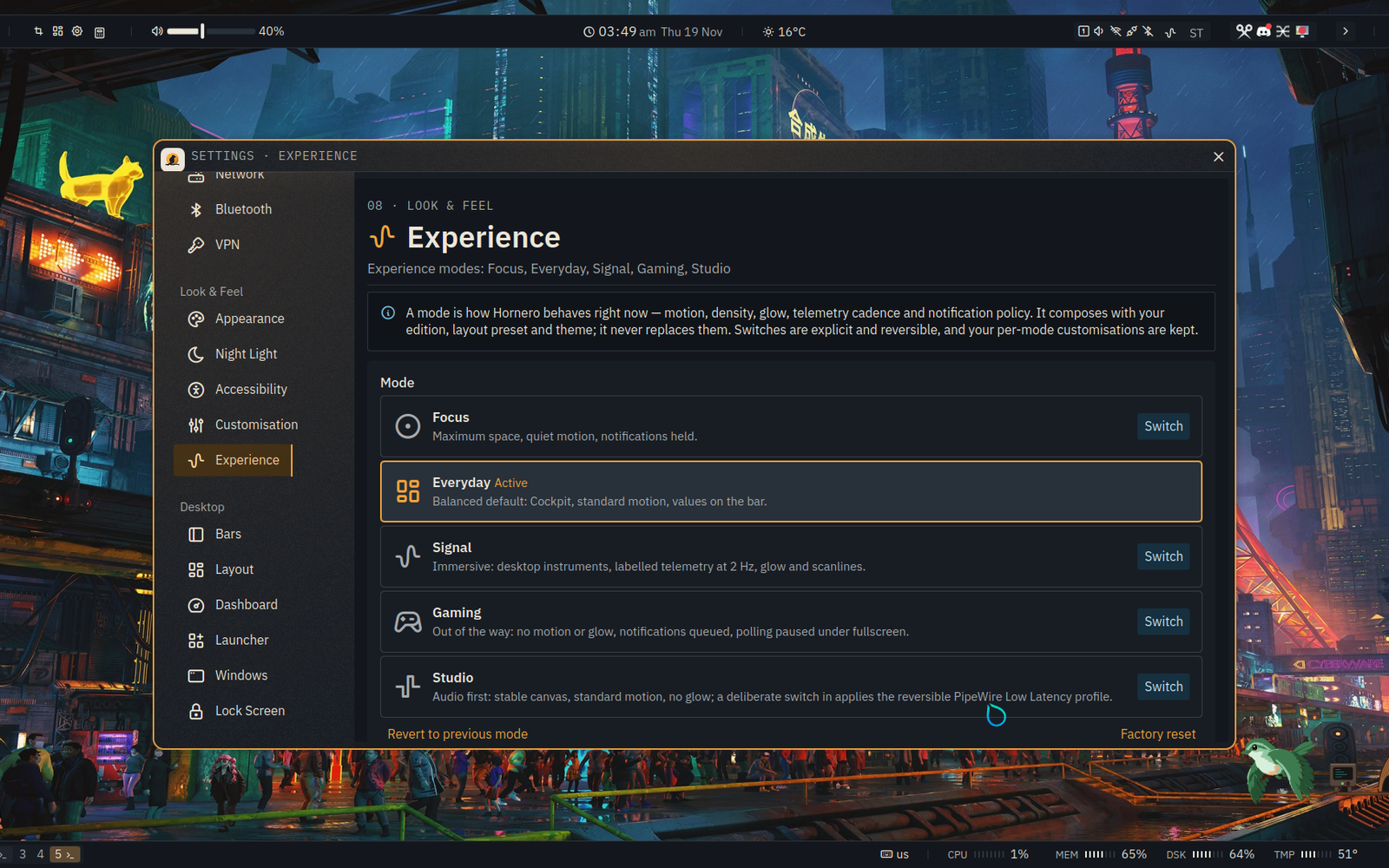
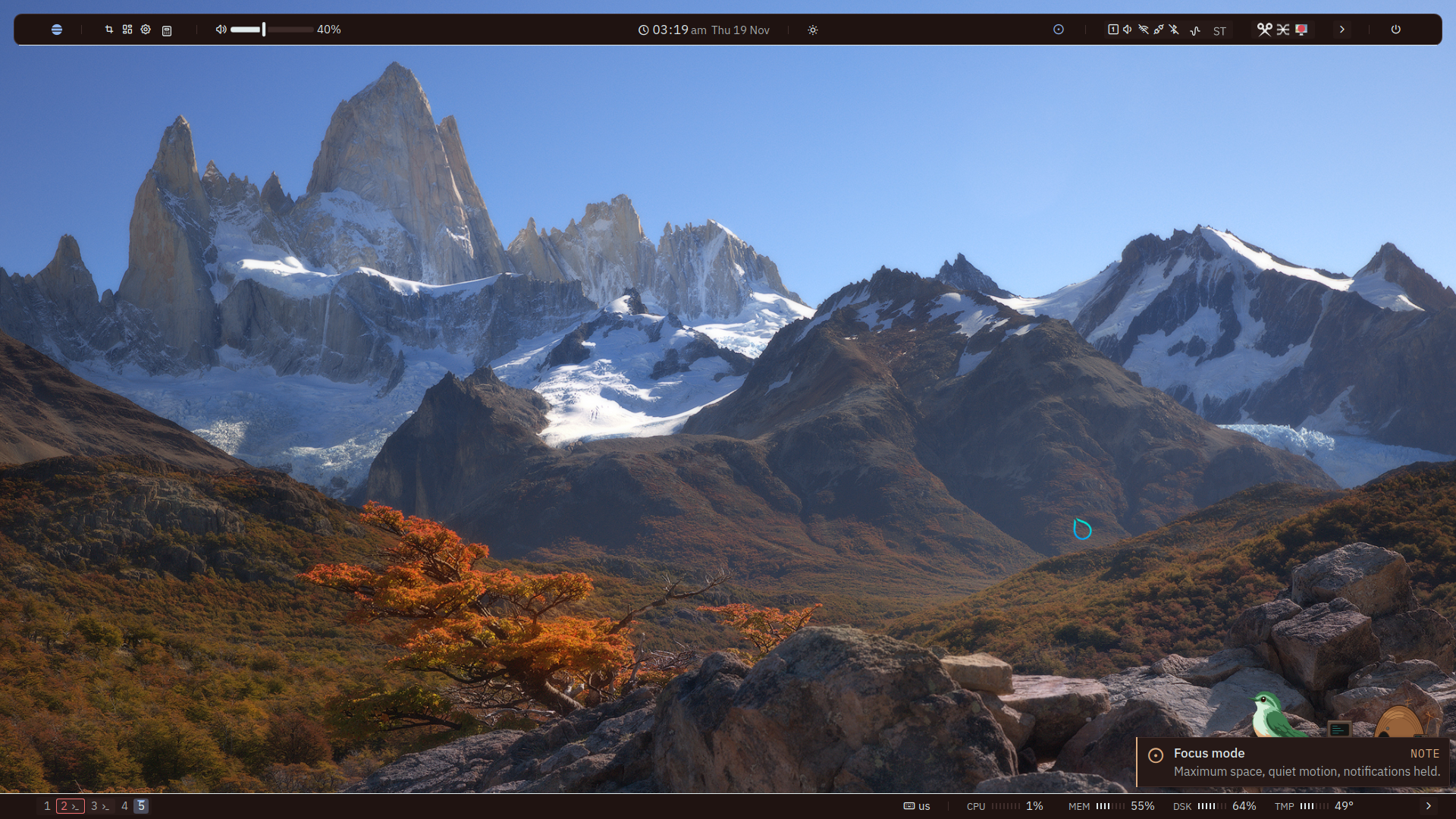
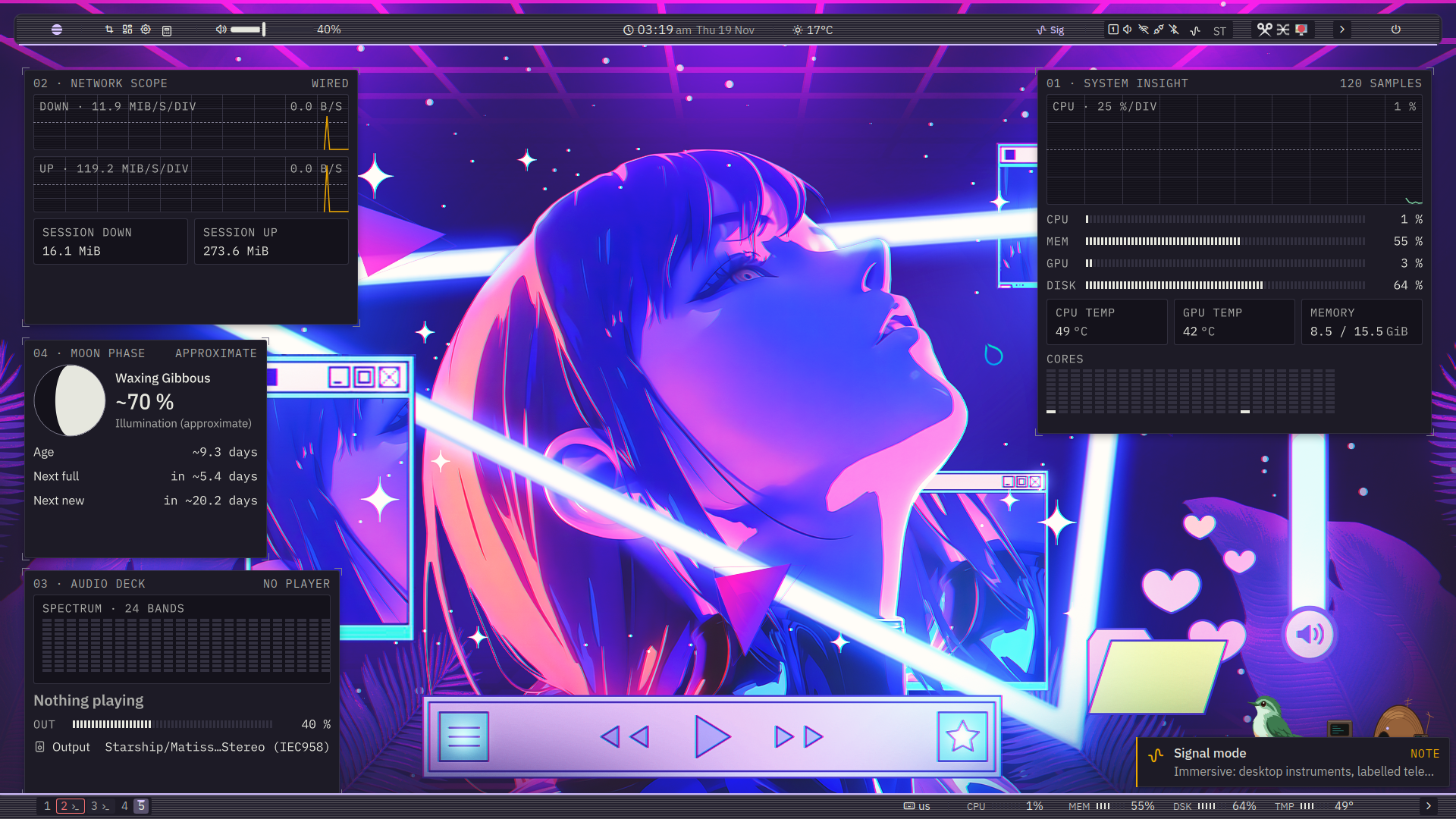
Each mode is a bundle of fields you can inspect and change one by one.Read the modes documentation · Hornero Chromatic
Selected captures
Real captures from the maintainer's machine (Hyprland, staged demo content). Shown values are that machine's, not requirements.