Hornero Playgroundhorneroos.com/tryx86_64 · KVM + VirGL + Live USB

Try real HorneroOS without touching your disk.

Every path on this page boots real x86_64 HorneroOS — Hyprland, Niri, Quickshell, Hornero Welcome, Hornero Apps, and horneroctl — never a mocked JavaScript desktop. HorneroOS is daily-driven and tested on 3+ physical computers as well as KVM: v0.2.0-preview42 ships the preinstalled Desktop QCOW2 and AUR packages today, while the current install ISO remains v0.2.0-preview32.

Download QCOW2 (v0.2.0-preview42)Browser / Self-hostLive USB on hardware

x86_64 only · Apple Silicon (M1–M4 Macs) notice

HorneroOS builds x86_64 images only right now. On Apple Silicon Macs (M1–M4), Hypervisor.framework cannot hardware-virtualize x86_64, so UTM falls back to slow QEMU TCG CPU emulation; native ARM64 and Parallels FEX are unsupported. For representative 60 FPS evaluation, use an x86_64 PC or self-host Hornero Playground on Linux with /dev/kvm.

PathBest forGraphics & audioStatus & limits
1. Browser (Hornero Playground)Zero-install instant evaluation in a web browser60 FPS WebRTC + PipeWire Opus audio (noVNC fallback has no audio or 3D)Standby awaiting cloud provider selection · self-hostable Docker + Terraform stack ready
2. Local preinstalled VMSmooth 60 FPS desktop with full keyboard shortcuts and unlimited timeHardware KVM + VirGL on Linux (software fallback on VirtualBox, ARM UTM & Hyper-V)v0.2.0-preview42 QCOW2 (2.6 GB, GPG-signed) published today + launchers ready
3. Live USB on your hardwareTesting real GPU, Wi-Fi, audio, and displays before installingNative hardware speed (includes Safe Graphics boot entry)Signed v0.2.0-preview32 ISO available today · nothing touches disk until Calamares confirms

Path 01 · BrowserHorneroOS/playgroundStandby · Awaiting provider

HorneroOS Browser Playground (ephemeral KVM + WebRTC)

HorneroOS/playground spins up a disposable KVM virtual machine per visitor from a read-only base image + Copy-on-Write overlay with a strict 15-minute TTL, streaming the real Wayland desktop and PipeWire audio over WebRTC (with a noVNC fallback).

Public availability contract (zero fake sessions)

standby-awaiting-provider

HorneroOS commits to $0/month default cloud spend and no public cloud provider has been selected yet (standby-awaiting-provider). Today the pure Python 3.12+ stdlib orchestrator, Docker Compose stack (coturn + WebRTC / noVNC), and Terraform/OpenTofu modules for Hetzner and GCP are published for self-hosting. Public browser sessions activate only when PUBLIC_PLAYGROUND_ENABLED=true and PUBLIC_PLAYGROUND_URL point to a verified cluster.

Self-host on any Linux server with /dev/kvm

# Dry-run verification (no KVM required)
python3 -m hornero_playground --host 127.0.0.1 --port 8080 --dry-run --base-image /var/lib/hornero/horneroos.qcow2

# Production container stack (orchestrator + coturn + noVNC fallback)
docker compose -f browser/streaming/docker-compose.yml up -d

Public availability contract (zero fake sessions)

  • Ephemeral by design: closing the tab or hitting the 15-minute limit destroys the CoW overlay and session permanently.
  • Isolated guest egress: visitors run behind netdev user,restrict=on and nftables drops by default; never enter real passwords, SSH keys, or tokens in public sessions.
  • Why not in-browser WASM: v86/WebVM cannot run x86_64 Wayland + VirGL for Hyprland and Quickshell.

Path 02 · Local Virtual MachineQCOW2 / OVMF / VirGL

Preinstalled Desktop QCOW2 (v0.2.0-preview42) or verified ISO

Running HorneroOS in a local VM gives you unlimited time, full compositor keybindings without browser collisions, and 60 FPS VirGL acceleration on Linux KVM.

Published & signed artifact · v0.2.0-preview42horneroos-0.2.0-preview42-desktop-qemu-x86_64.qcow2.zst

Download Preinstalled Desktop QCOW2 (v0.2.0-preview42)

Preinstalled x86_64 QEMU/KVM desktop disk (UEFI OVMF, PipeWire, Hornero Signal, Hornero Apps, and Hornero Welcome), zstd-compressed and signed with the official HorneroOS GPG release key.

Download Preinstalled Desktop QCOW2 (v0.2.0-preview42, 2.6 GB, GPG-signed)

SHA-256: c1012413227f407d0a312fad7d7a34f789922303db13c752a9a9ed1a324e13c2

Quickstart on QEMU/KVM (verify, decompress, and boot with ephemeral CoW overlay)

# 1. Verify checksum and GPG signature before decompressing
sha256sum -c horneroos-0.2.0-preview42-desktop-qemu-x86_64.qcow2.zst.sha256
gpg --verify horneroos-0.2.0-preview42-desktop-qemu-x86_64.qcow2.zst.sig horneroos-0.2.0-preview42-desktop-qemu-x86_64.qcow2.zst

# 2. Decompress the QCOW2 image (2.6 GB -> ~10 GB) and boot in KVM
zstd -d horneroos-0.2.0-preview42-desktop-qemu-x86_64.qcow2.zst
./launchers/qemu/hornero-vm-run.sh \
  --image horneroos-0.2.0-preview42-desktop-qemu-x86_64.qcow2 \
  --ephemeral

Real KVM captures1920×1080 · UEFI KVM Wayland · v0.2.0-preview42

Real live 1920×1080 UEFI KVM Wayland captures (v0.2.0-preview42)

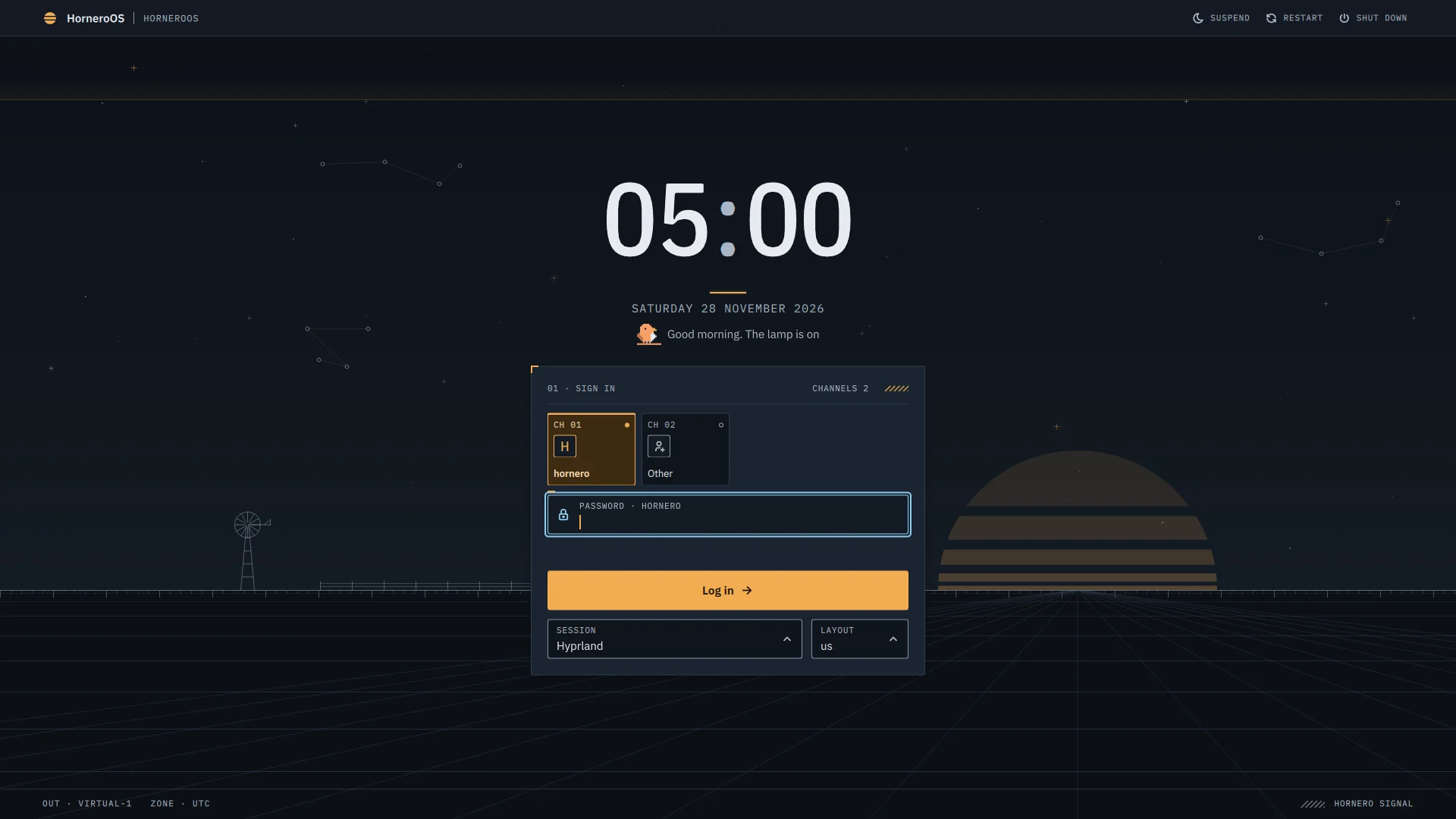
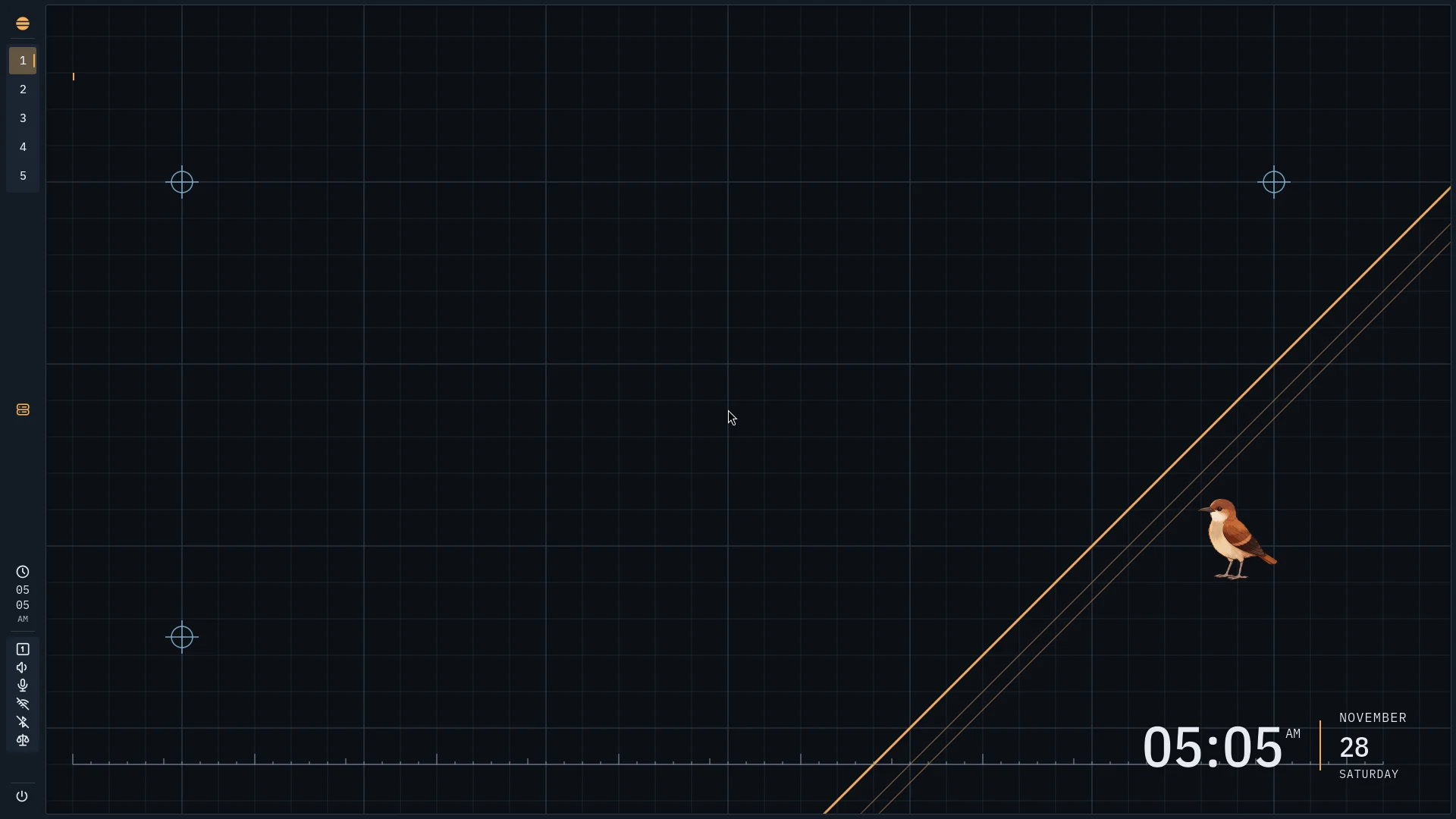
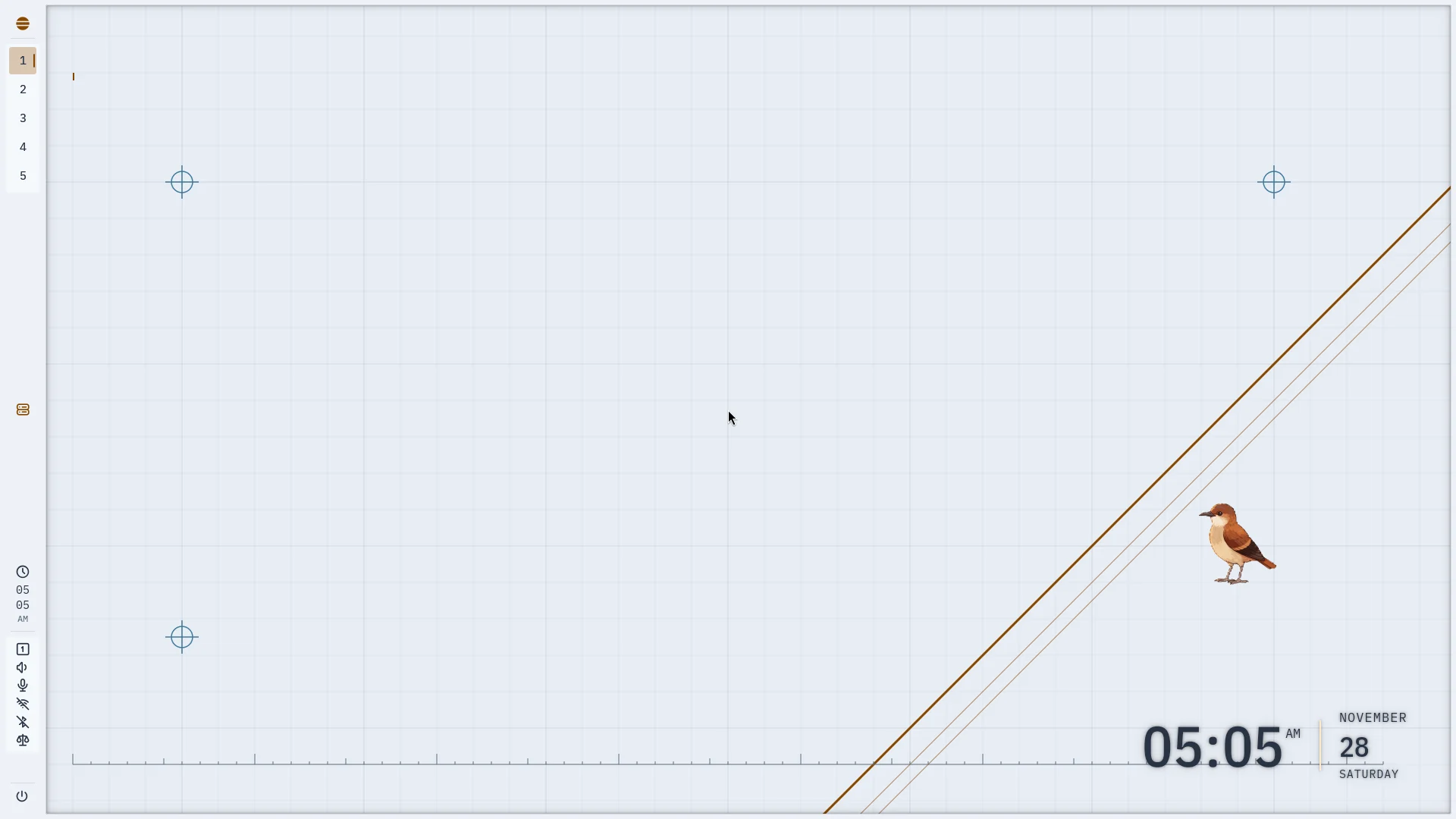
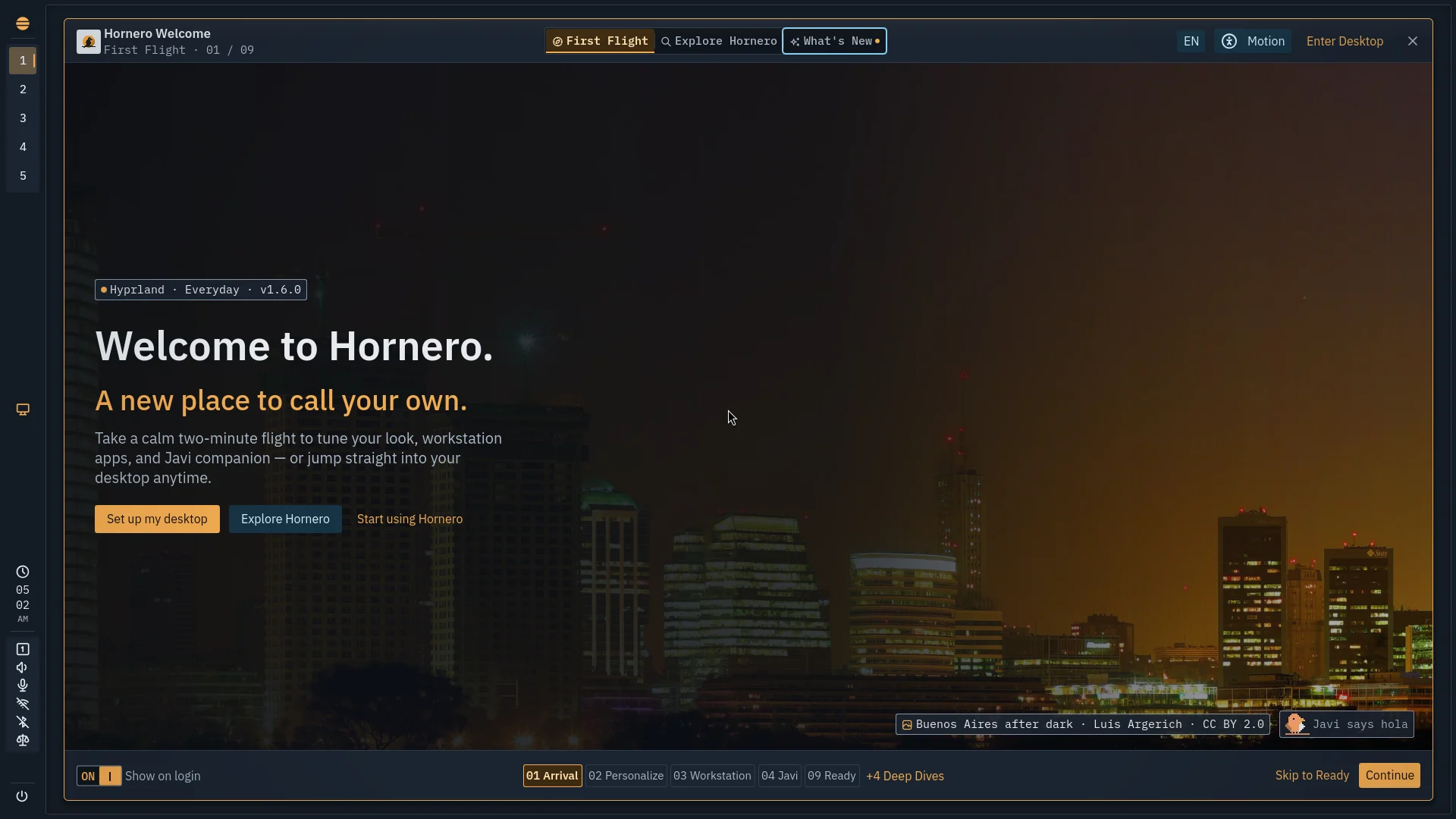
Unedited full-desktop captures taken directly inside the booted HorneroOS v0.2.0-preview42 UEFI KVM virtual machine (virtio-vga / Wayland / Quickshell), from SDDM login to the live desktop and apps.

SDDM Greeter · 1080p KVM1920×1080
Real live 1920x1080 UEFI KVM Wayland capture of HorneroOS v0.2.0-preview42 showing the SDDM Signal greeter.
Hornero Greeter on SDDM (QMP screendump)Real live 1920×1080 UEFI KVM Wayland capture of v0.2.0-preview42 showing HorizonField and account channels.
Signal Night · 1080p KVM1920×1080
Real live 1920x1080 UEFI KVM Wayland capture of HorneroOS v0.2.0-preview42 showing the Signal Night desktop.
Live Signal Night desktopReal live 1920×1080 UEFI KVM Wayland capture of v0.2.0-preview42 in Signal Night with top bar and wallpaper.
Signal Day · 1080p KVM1920×1080
Real live 1920x1080 UEFI KVM Wayland capture of HorneroOS v0.2.0-preview42 showing the Signal Day desktop.
Live Signal Day (white ceramic) desktopReal live 1920×1080 UEFI KVM Wayland capture of v0.2.0-preview42 after switching live to Signal Day.
Hornero Welcome · 1080p KVM1920×1080
Real live 1920x1080 UEFI KVM Wayland capture of HorneroOS v0.2.0-preview42 showing Hornero Welcome Arrival.
Signal Flight Arrival (scene 01 / 09)Real live 1920×1080 UEFI KVM Wayland capture of v0.2.0-preview42 running Hornero Welcome First Flight.
Hornero Apps · 1080p KVM1920×1080
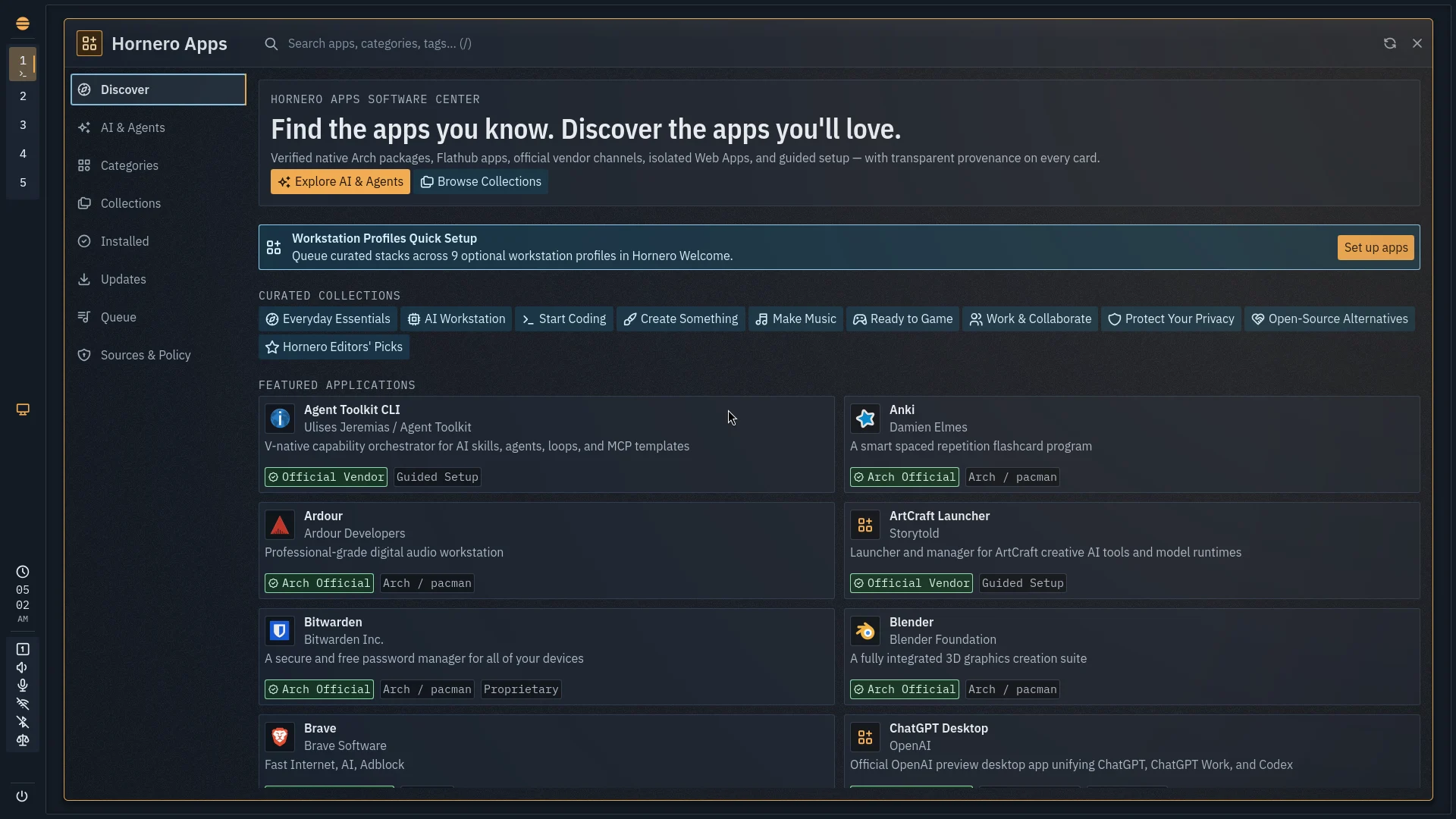
Real live 1920x1080 UEFI KVM Wayland capture of HorneroOS v0.2.0-preview42 showing Hornero Apps Discover.
Hornero Apps Discover (271 apps)Real live 1920×1080 UEFI KVM Wayland capture of v0.2.0-preview42 browsing the Hornero Apps catalog.
Launcher · 1080p KVM1920×1080
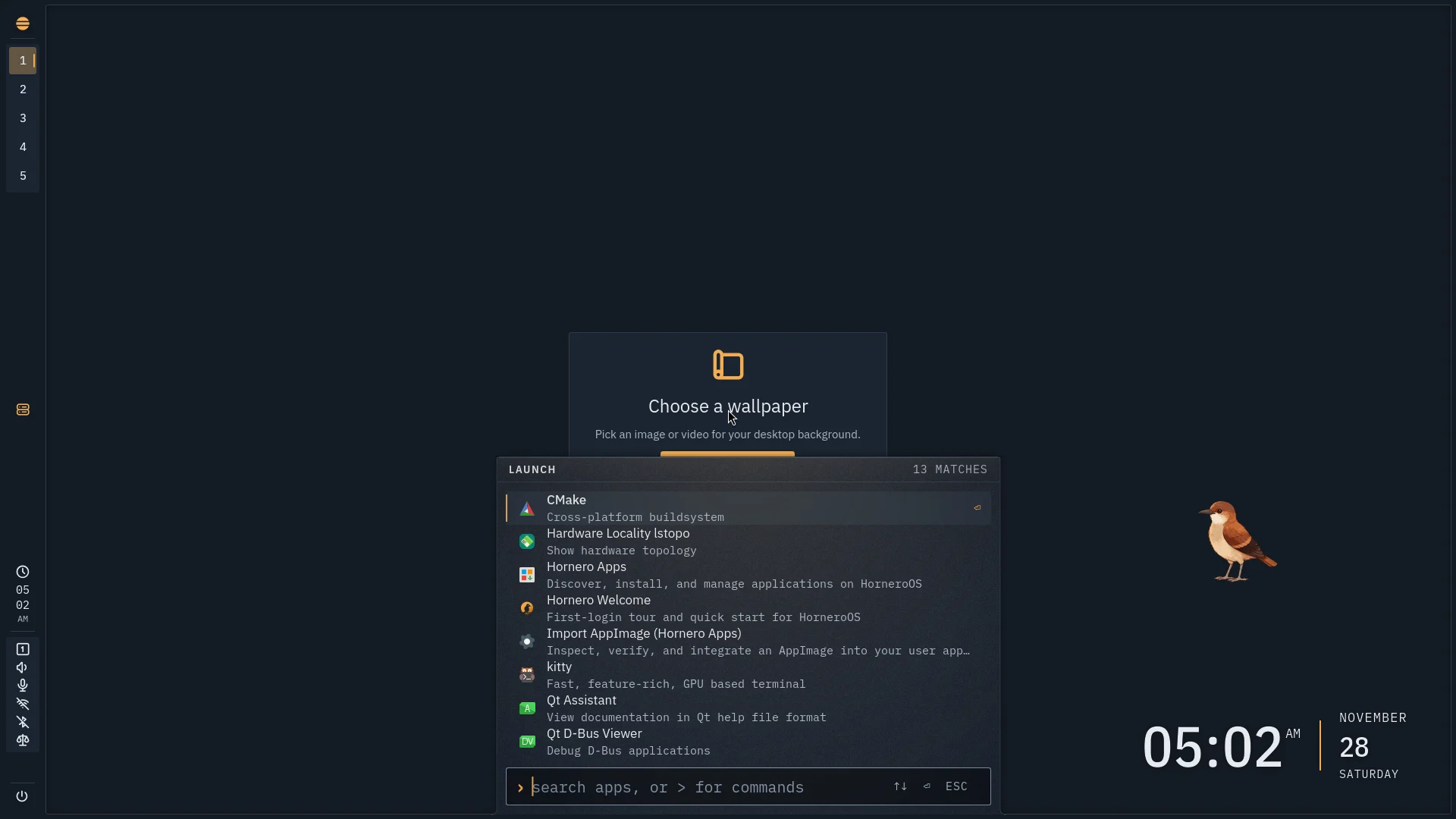
Real live 1920x1080 UEFI KVM Wayland capture of HorneroOS v0.2.0-preview42 showing the live Launcher.
Live Launcher overlay in Wayland sessionReal live 1920×1080 UEFI KVM Wayland capture of v0.2.0-preview42 with the Hornero Shell launcher open.

Artifact note: alongside the published v0.2.0-preview42 preinstalled QCOW2 above, you can still boot the signed v0.2.0-preview32 ISO directly in QEMU, Quickemu, VMware, or VirtualBox to test the Calamares installer.

Recommended VM sizing

RAM
4 GiB minimum (6–8 GiB recommended for Studio or browsers)
CPU
4 vCPUs
Disk
32 GiB dynamic QCOW2/VDI (when installing inside the VM)
Firmware
UEFI (OVMF) + SHA-256 & GPG check (FCFBEE43925AB5429362278AE59EAB44AA2498DC)

Honest 4-tier VM compatibility matrix

Every hypervisor tier reflects real behavior with Hyprland (Aquamarine), Niri (Smithay), and Quickshell (Qt 6)—never claiming 3D acceleration where guests fall back to CPU.

TierHypervisor / HostDriver / BackendAccelerationHonest caveat
Officially testedQEMU/KVMvirtio-vga-gl (VirGL)Yes (GPU / 3D)Primary 60 FPS path using virtio-vga-gl, OVMF UEFI, and ephemeral CoW overlays via hornero-vm-run.sh.
Officially testedlibvirt / virt-managerVirtIO 3D (virgl)Yes (GPU / 3D)60 FPS via VirtIO 3D (virgl) in virt-manager with UEFI firmware (OVMF_CODE.4m.fd) and OpenGL display enabled.
Officially testedQuickemuOVMF + gl="on" (VirGL)Yes (GPU / 3D)Single-command 60 FPS launch with horneroos.conf (boot="efi", gl="on") on Linux hosts.
Compatible with limitationsVMware Workstation / FusionSVGA3D (vmwgfx)Yes (GPU / 3D)Usable with svga.enable3d = "TRUE" (vmwgfx). If Quickshell blanks on your GPU, export QSG_RHI_BACKEND=opengl or software.
Compatible with limitationsGNOME BoxesVirtIO GLYes (GPU / 3D)Reuses libvirt/VirGL out of the box; exposes fewer custom OVMF or Venus controls.
Software fallbackVirtualBoxVMSVGA (3D disabled / llvmpipe)No (CPU / N/A)Uncheck Enable 3D Acceleration (VMSVGA 3D causes black screens/crashes) and export LIBGL_ALWAYS_SOFTWARE=1 + QT_QUICK_BACKEND=software.
Software fallbackmacOS UTM (Intel / Apple Silicon x86_64 TCG)QEMU TCGNo (CPU / N/A)Near-native speed on Intel Macs; on Apple Silicon (M1–M4) falls back to slow QEMU TCG x86_64 CPU emulation.
Software fallbackHyper-Vhyperv_fb (llvmpipe)No (CPU / N/A)Standard Gen 2 Linux VMs lack upstream Mesa Gallium3D drivers and fall back to hyperv_fb + llvmpipe on CPU.
UnsupportedARM64 nativeN/A (x86_64 only)No (CPU / N/A)HorneroOS publishes x86_64 builds only right now.
UnsupportedParallels Apple Silicon x86_64FEX x86_64No (CPU / N/A)FEX-derived x86_64 emulation is slow and Parallels Tools break under pure Wayland sessions.
Select your hypervisor

QEMU / KVM (Linux)

Officially tested · 60 FPS VirGL

Hardware-accelerated GPU via VirGL (virtio-vga-gl) + OVMF UEFI and ephemeral CoW overlays leaving the base image untouched.

./launchers/qemu/hornero-vm-run.sh \
  --image /path/to/horneroos.qcow2 \
  --verify-sha256 /path/to/horneroos.qcow2.sha256 \
  --ephemeral

# Or boot the official v0.2.0-preview32 Live ISO directly:
./launchers/qemu/hornero-vm-run.sh --iso /path/to/horneroos-2026.10-preview32-x86_64.iso

Requires /dev/kvm and qemu-system-x86_64 on Linux. Pass --dry-run to inspect the generated QEMU command first.

Path 03 · Your own hardwarehorneroos-2026.10-preview32-x86_64.iso

Live USB without modifying your drives

Boot the signed v0.2.0-preview32 ISO from a USB stick to test real Wi-Fi, GPU, audio, and displays in RAM before deciding to install.

  1. Download & verify

    Grab horneroos-2026.10-preview32-x86_64.iso (2.7 GB) and verify its SHA-256 checksum and GPG signature.

    sha256sum horneroos-2026.10-preview32-x86_64.iso
    gpg --verify horneroos-2026.10-preview32-x86_64.iso.sig
  2. Write & boot (Safe Graphics ready)

    Confirm your USB device with lsblk, write the image, and disable Secure Boot if blocked. If your GPU hits a black screen, pick Safe Graphics in the boot menu (nomodeset WLR_RENDERER=pixman).

    sudo dd if=horneroos-2026.10-preview32-x86_64.iso of=/dev/sdX bs=4M status=progress conv=fsync
  3. Explore non-destructively

    The live session auto-logs into Hyprland as hornero-live with idle lock disabled. Explore Hornero Welcome, themes, layouts, and diagnostics. Nothing touches your internal disk until Calamares confirms partitioning.

    horneroctl doctor
    horneroctl version

Demos, YouTube & visual baselinehornero-presenter

Presenter Mode & 1920×1080 Full HD baseline

For live talks, YouTube shoots, or clean walkthrough clips without notification popups, use the HorneroOS/playground presenter helper or the shipped Quickshell Do Not Disturb IPC.

Official visual baseline: 1920x1080 Full HD (scale 1.0) · Variants up to 3840x2160 4K · 7 QA & Demo Studio display profiles

# With the HorneroOS/playground presenter helper installed:
hornero-presenter on
hornero-presenter off

# On any installed HorneroOS desktop (Quickshell IPC + horneroctl):
qs ipc call notifs enableDnd && horneroctl mode set focus
horneroctl capture screenshot
horneroctl capture record