 Ardour
 Carla
 Guitarix
Esta documentación todavía está en inglés. Sale del repositorio HorneroOS/docs y su traducción al español está pendiente ahí. La navegación del sitio ya está en español.
Studio audio setup, routing, and recovery
How Studio audio works on HorneroOS: the mode contract, the portable policy profiles, day-to-day routing, and how to recover when something sounds wrong. Studio is a Supported edition — this guide describes the reviewed contracts and configuration that exist today, not QA-validated support for any specific interface.
Source contracts, in ownership order:
- Mode semantics: HorneroOS/hornero
editions/catalogue.yaml(studioAudioModes), resolved byscripts/resolve-edition.py. - Portable policy values: HorneroOS/config
docs/STUDIO-AUDIO.mdand thedesktop/pipewire+desktop/studio-audioprofiles. - Measured support claims: HorneroOS/qa only.
Modes
| Mode | When | What changes |
|---|---|---|
| Balanced (default) | Always safe | Nothing; follows device |
| Low Latency (opt-in) | Short monitoring paths | 128-frame quantum proposal |
| Advanced (opt-in) | Per-interface calibration | Your measured values |
| Temporary Performance | Long renders/exports | Temporary power profile |
Mode details:
- Balanced follows the device rate and quantum; WirePlumber manages sessions.
- Low Latency proposes a 128-frame quantum at 48 kHz (min 64, max 256) for interfaces that can sustain it. Proposal values, not measured support.
- Advanced ships no fixed numbers on purpose.
- Temporary Performance reuses power-profiles-daemon and restores the previous profile on timeout, cancel, error, or reboot.
Quantum is a scheduling period. It is not physical round-trip latency, and no Hornero surface presents it as such; only a physical loopback measurement reports real latency. If an interface underruns (clicks, dropouts) at 128 frames, go back to Balanced — that is the expected behaviour, not a failure to tune around with system hacks.
Setup
-
Balanced needs no setup: the config profile installs an explicit no-override drop-in at
~/.config/pipewire/pipewire.conf.d/10-hornero-studio-balanced.conf. -
To try Low Latency, copy the template and restart the user services:
cp ~/.config/hornero/studio-audio/low-latency.conf \ ~/.config/pipewire/pipewire.conf.d/50-hornero-studio-low-latency.conf systemctl --user restart pipewire wireplumber -
Advanced: write your measured rate/quantum into a copy of
advanced.confthe same way. Keep one file per interface if they differ; never copy device names or values from another machine.
Check the current selection and health any time with:
horneroctl studio doctor
horneroctl studio selection show --json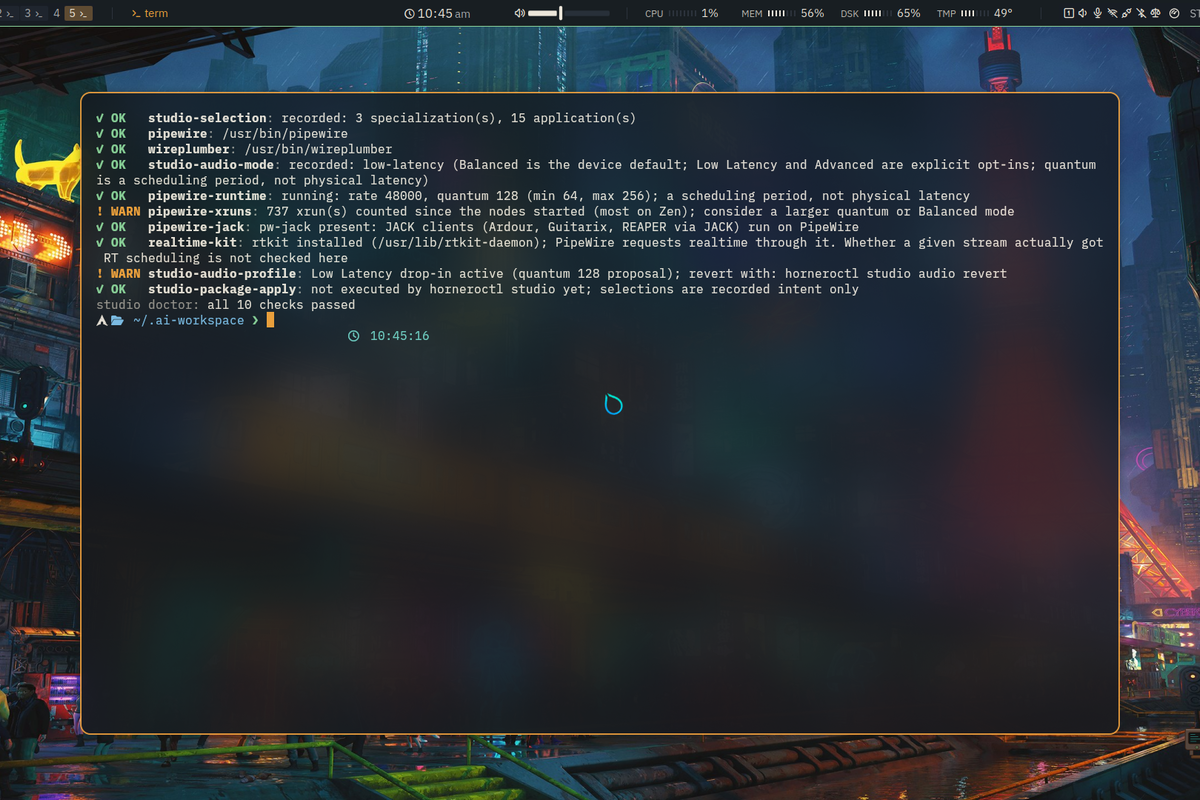
horneroctl studio doctor with Low Latency recorded: the warnings
stay visible, including the xrun count. Quantum values are a
scheduling period, not measured latency. Capture from the maintainer’s
machine, 19 November 2026.
Routing
- Use WirePlumber-aware tools (
wpctl,qpwgraph, or your DAW’s PipeWire/JACK ports) to route application streams. Hornero sets no device-specific rules, so your routing survives device changes. - Pro-audio applications connect through
pipewire-jack; the legacypipewire-media-sessionis not part of Studio. - Bluetooth and consumer devices stay on the default session policy; switching to a Studio mode never re-prioritises them.
Recovery
Every mode is reversible by construction:
-
Remove the copied drop-in and restart the user services to restore the previous state exactly:
rm ~/.config/pipewire/pipewire.conf.d/50-hornero-studio-low-latency.conf systemctl --user restart pipewire wireplumber -
A mode change never requires a reboot, a kernel change, or privilege changes. Hornero never installs an RT kernel, retunes IRQ or CPU governors, or edits I/O schedulers — if a guide elsewhere tells you to, it is not part of HorneroOS Studio.
-
Still broken after restoring? Check
horneroctl studio doctor, thensystemctl --user status pipewire wireplumber, and remove any other files you added under~/.config/pipewire/pipewire.conf.d/.
Boundaries
- No personal project templates, plugin caches, licenses, or device names are shipped or required.
- REAPER and Windows VST tooling follow their vendor terms (see the Studio application matrix).
- Support claims for specific interfaces, sample rates, or workloads belong to HorneroOS/qa acceptance evidence, not to this guide.