Terminal and shell
Hornero separates the terminal window, the interactive shell inside it, and the command-line tools that manage the desktop. Kitty is the curated terminal in the Hornero Config package, but it is an optional package dependency. A host can use another terminal for normal launches; Super + E specifically opens Yazi in Kitty.
Open a terminal
- Press Super + T or Super + Enter to open the host’s XDG
TerminalEmulatorassociation throughexo-open. - Open the Launcher with Ctrl + Space and search for an installed terminal.
- Press Super + E for Yazi in a Kitty window. This workflow needs both Kitty and Yazi.
The host’s Xfce helper setting chooses the TerminalEmulator target. The
default-application command changes MIME associations and does not change that
terminal helper. See Default applications and
keyboard shortcuts.
Kitty
Kitty is a GPU-accelerated terminal emulator. Hornero Config provides its
system defaults under /etc/xdg/kitty; your user configuration at
~/.config/kitty/kitty.conf can override them. The defaults include a Hornero
Dark palette, font and window spacing, scrollback, and copy/paste bindings:
| Key | Action |
|---|---|
Ctrl + Shift + C | Copy selection |
Ctrl + Shift + V | Paste |
Ctrl + Shift + Page Up/Down | Scroll one line |
Ctrl + Shift + Home/End | Scroll to top / bottom |
Ctrl + L | Clear the visible screen |
The screenshot shows Kitty running horneroctl appearance commands with the
current host configuration. Theme IDs shown by a specific machine can differ
from a later catalogue pin.
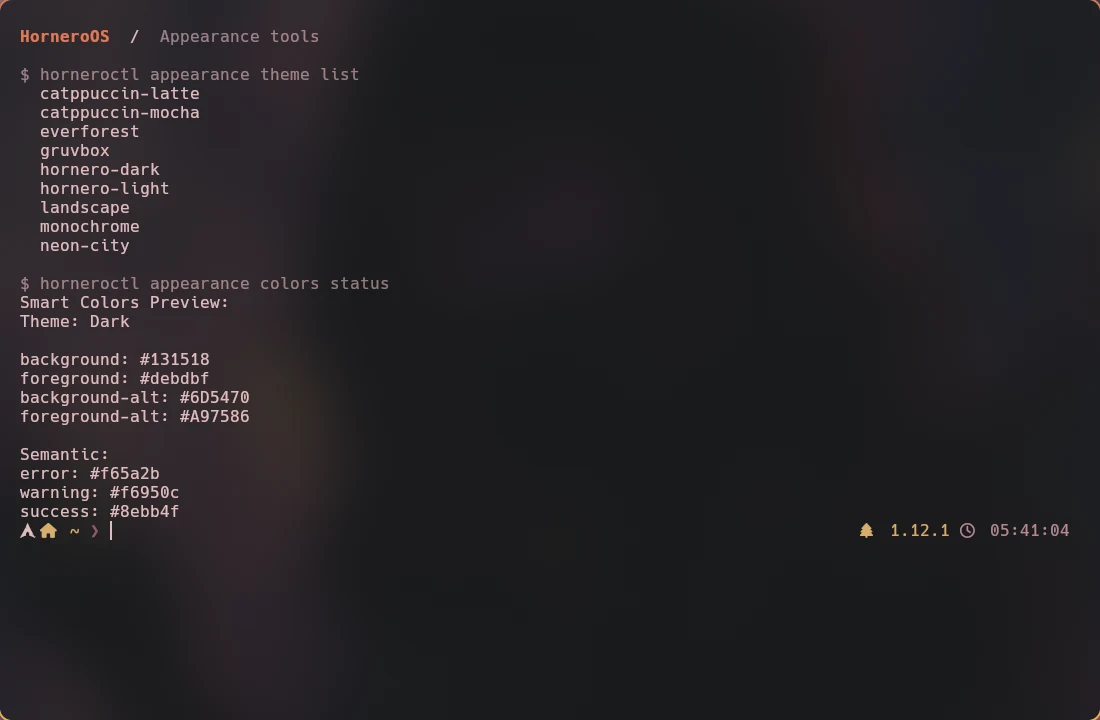
Theme packs provide Hornero Dark, Light, and Pampa palettes. Wallpaper-derived
colors can also write a user overlay under
~/.cache/hornero/smart-colors/colors-kitty.conf. If Kitty reports that the
optional overlay is absent, the packaged palette still works; generate colors
from Appearance or remove only the stale include in a user override.
The public dotfiles repository
adds a personal Kitty setup with an 80×24 initial window, 12-point font, and
80% background opacity. Those are workstation preferences, not a Hornero
release requirement. Edit the active kitty.conf to customize Kitty. See the
Kitty manual.
Shell and command workflow
Your account’s configured shell runs inside the terminal. Hornero Config
does not make Zsh, a prompt, shell plugins, or aliases a system dependency.
The public dotfiles configuration optionally installs Zsh and defines a
personal profile in ~/.zshrc, ~/.zsh/config.d/, and related prompt files.
It enables vi-style command-line editing, reverse history search with
Ctrl + R, and prompt/alias loading. These personal choices do not affect
Hornero’s CLI contract.
That profile also sets $EDITOR and $VISUAL to Neovim for command-line
programs. Hornero itself has no universal graphical editor default; see
Default applications. To run desktop tasks from a shell,
use horneroctl and its installed
--help output.
Optional tmux setup
The personal workstation configuration includes tmux and plugins; neither is
required by Hornero. Its configuration uses Ctrl + A as the primary prefix,
Ctrl + B as an alternate prefix, mouse support, vi-style copy-mode, and a
large scrollback history. Plugin installation depends on the optional TPM
checkout. See the tmux manual before
copying those preferences to another machine.
When something does not open
- Run
horneroctl apps launch --listto see which launch backends are available. - Run
horneroctl apps terminal-file --helpto inspect the Yazi workflow. - Check that the selected terminal
.desktopfile andTerminalEmulatorhelper exist. - If Kitty’s palette is stale, apply the desired theme again in
Settings → Appearance. For generated colors, check
horneroctl appearance colors status.
Useful references: Kitty, Zsh manual, tmux wiki, Appearance, and shortcuts.