Keyboard shortcuts
Super means the Windows/Meta key. The configured bindings can vary with the
release and user configuration; this quick reference follows the current
Hornero Hyprland defaults. Press Super + / to open the keybinding overlay,
which lists every bind your session runs right now (see
Keybinding overlay), or ask the CLI with
horneroctl hardware keyboard rebind list.
Shell and applications
| Shortcut | Action |
|---|---|
Ctrl + Space | Open the application launcher |
Super + D | Open the Dashboard |
Super + Shift + B | Open the Layout Picker |
Super + X | Open the session and power menu |
Super + V | Open clipboard history |
Super + E | Open the terminal file manager |
Super + F | Open the graphical file manager |
Super + T or Super + Enter | Open a terminal |
Super + W | Open the browser |
Super + L | Lock the session |
Print / Shift + Print | Capture the screen / choose an area |
Windows and workspaces
| Shortcut | Action |
|---|---|
Super + H/J/K or arrow keys | Focus a neighboring window |
Super + Shift + H/J/K/L or arrow keys | Move the focused window |
Super + Space | Toggle floating for the focused window |
Super + M | Toggle fullscreen |
Super + Shift + M | Toggle maximize |
Super + Shift + Q | Close the focused window |
Super + R | Enter resize mode; use H/J/K/L or arrows, then Escape |
Super + 1…9, 0 | Switch to workspace 1…10 |
Super + Shift + 1…9, 0 | Move the focused window to workspace 1…10 |
Super + Tab / Super + Shift + Tab | Move to next / previous workspace |
Super + S | Toggle the scratch workspace |
Super + O | Workspace overview (optional plugin) |
Super + L locks the session, so focus moves right with Super + Right
(the same as in Niri).
In the scrolling window layout, Super + Alt + H/L moves across
columns;
Super + Alt + -/= changes the active column width. The
Shell interaction guide
has the detailed movement contract.
Hardware keys
Media keys control playback, volume keys change output volume, and microphone mute toggles the default source. Brightness keys change the display by 10%; hold Shift for 1% steps. These keys depend on hardware and the active backend.
Recovery and caution
Press Escape to leave the resize mode or a shell overlay. Super + Shift + R
reloads the compositor configuration. Super + Shift + E exits Hyprland;
do not use it as a routine close-window shortcut.
For current bindings and keyboard-layout status:
horneroctl hardware keyboard keys
horneroctl hardware keyboard layout --current
To change which layouts the session offers, use Control Center › Input or the CLI (applies live, persists, and is restored at login):
horneroctl hardware keyboard layout --list
horneroctl hardware keyboard layout --set us,latam \
  --variant intl, --yes
Window behaviour
Control Center › Windows covers gaps, border size, corner rounding and focus-follows-mouse, plus user window rules:
horneroctl hypr windows status
horneroctl hypr windows set --gaps-in 8 --follow-mouse 2 --yes
horneroctl hypr windows rules add --match class \
  --pattern kitty --effect float --yes
horneroctl hypr windows rules list
Geometry and focus apply live and are restored at login. Rules are
stored in your window-rules-user.conf overlay (factory rules are
never edited) and take effect on Hyprland config reload
(Super + Shift + R) or restart; already-open windows are
unaffected.
Keybinding overlay
Super + / opens an overlay with every active bind, read live from Hyprland and grouped by purpose (applications, windows, focus, workspaces, media, screenshots, system, mouse, your personal binds, plugins). Type to filter. Search matches keys, actions and group names in English or Spanish.
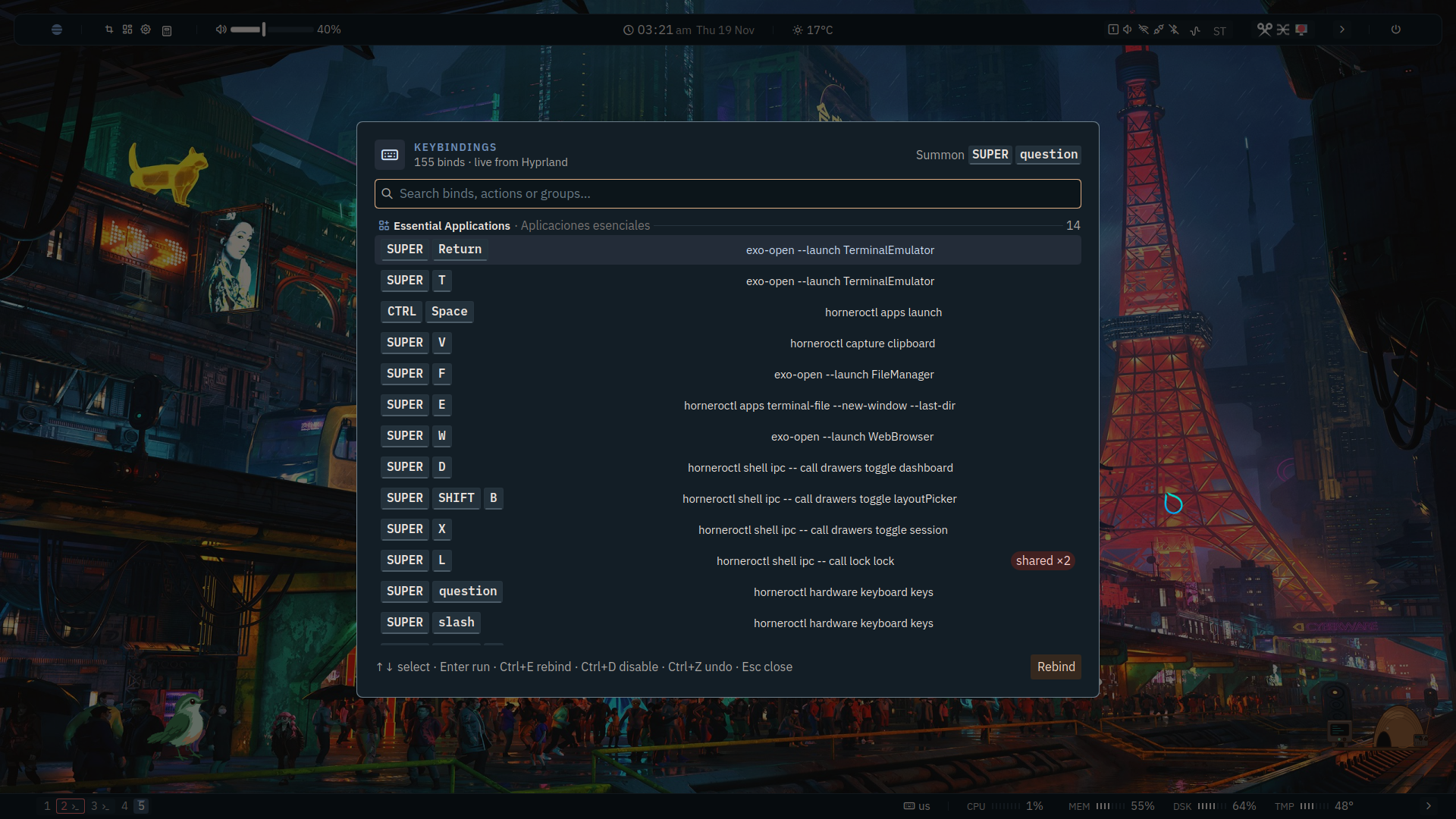
The keybinding overlay, summoned with Super + / and read live from Hyprland. Running-desktop capture from the maintainer’s machine, 19 November 2026.
| Key | Action |
|---|---|
| Up / Down | Move the highlight |
| Enter | Run the highlighted bind |
| Ctrl+E | Rebind it in place: press the new combo |
| Ctrl+D | Disable it |
| Ctrl+Z | Undo the last change |
| Escape | Clear the search, then close |
When you rebind, the overlay records the next combo you press, even one that is already taken. A taken combo is named with its group before anything is saved. Press S to swap the two binds, R to try another combo, or Enter to save a free combo. Changes apply immediately and Undo puts back exactly what was there.
The summon key is an ordinary bind. To use Super + K as Omarchy does, rebind the “keyboard keys” entry to Super + K and swap it with focus-up. Control Center › Keybinds has the overlay settings (Enter runs, close after running, show submap and mouse binds, compact rows) and the same editor.
Rebinding
Use the overlay, Control Center › Keybinds, or the CLI:
horneroctl hardware keyboard rebind list --json
horneroctl hardware keyboard rebind set \
  --old "SUPER + Return" --new "SUPER + F13" --yes
horneroctl hardware keyboard rebind set \
  --old "SUPER + K" --new "SUPER + J" --swap --yes
horneroctl hardware keyboard rebind set --old "SUPER + K" --new none --yes
horneroctl hardware keyboard rebind undo --yes
horneroctl hardware keyboard rebind reset --yes
On the factory Lua configuration, rebinds go to the generated
~/.config/hypr/hornero-keybinds.lua. It holds data only, and the config’s
keybindings-overlay.lua applies it before any bind loads. Neither the
factory keybindings.lua nor your keybindings-user.lua is edited, and
unbind/bind pairs in your personal file follow a rebind. Undo snapshots
live in ~/.local/state/hornero/keybinds/undo (last 20). Older hyprlang
configurations keep unbind/bind pairs in keybindings-user.conf.
Accessibility
Control Center › Accessibility groups text size, transparency, motion and cursor size:
horneroctl hypr cursor status
horneroctl hypr cursor set --size 32 --yes
The cursor size applies to the Hyprland cursor immediately, is
restored at login, and is picked up by other apps when they start.
The status command names where the effective size came from
(persisted setting, XCURSOR_SIZE, or the default), because
Hyprland does not expose the live size back.
The source of truth for factory bindings is HorneroOS/config’s keybinding file. For how these shortcuts launch the configured programs, see Apps and workflows.