Gaming: Proton, GameMode, Gamescope and MangoHud
How to run games on HorneroOS and how to tell a game problem from a system problem. HorneroOS publishes no performance or frame-rate claims here: measure your own machine, on your own games.
Check readiness first
horneroctl gaming doctor
horneroctl mode set gaming
horneroctl gaming selection show
The doctor reports capability and registration only: Vulkan, the 32-bit loader, Steam, GameMode, Gamescope, MangoHud, audio and controllers. It never claims a game will run or how fast.
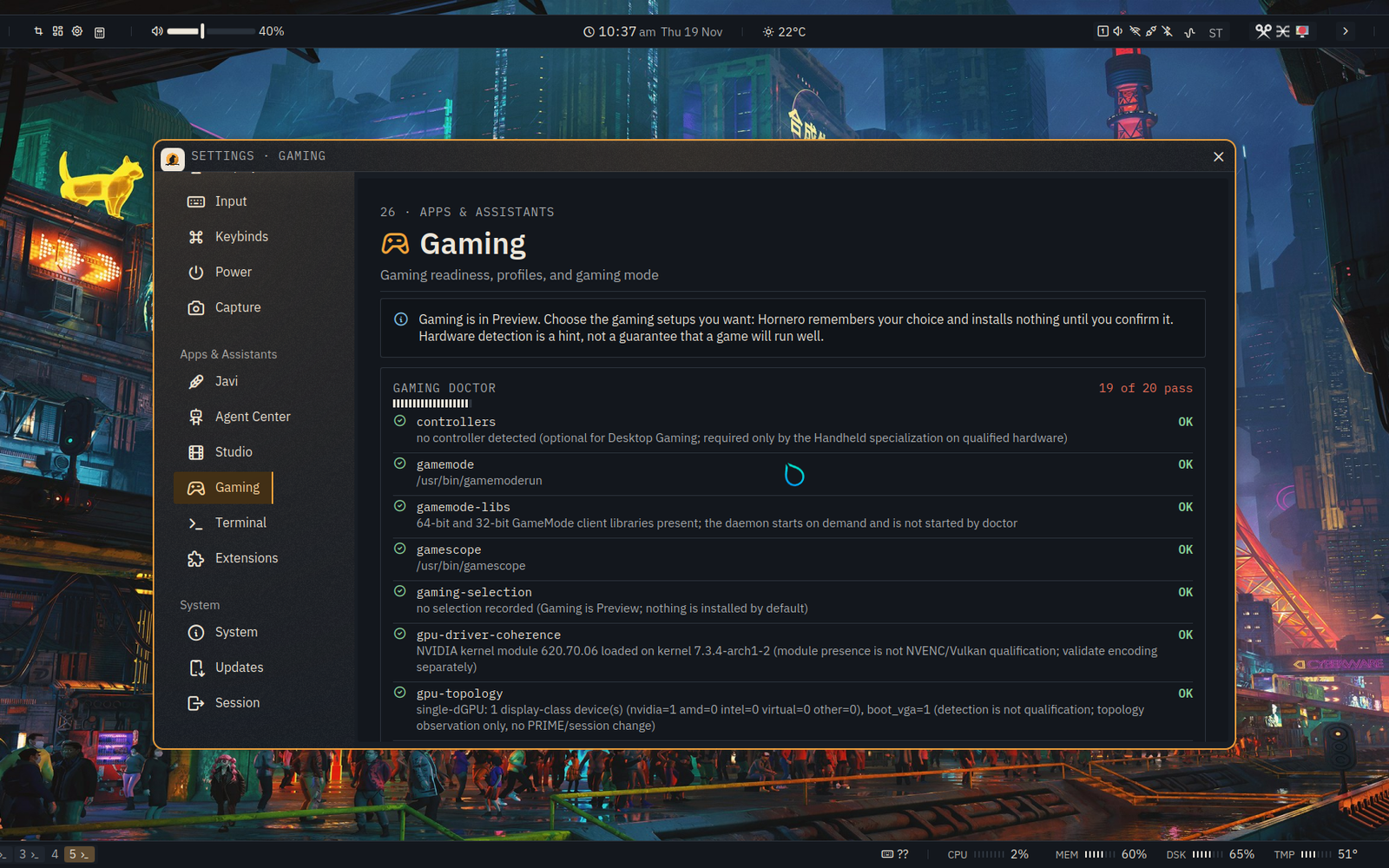
The same readiness checks in Settings → Gaming. This reports readiness only and installs nothing. Running-desktop capture from the maintainer’s machine, 19 November 2026.
Steam and Proton
Steam is opt-in; install it only if you want it. Proton is managed by Steam: choose the Proton version per game in that game’s Steam Properties → Compatibility, and change one thing at a time.
- Set launch options in the game’s Properties → General. The
official pattern is variables first, then
%command%where the options belong, for example offload variables on a hybrid laptop (see Hybrid graphics and NVIDIA). - Read HorneroOS’s own recorded options with
horneroctl gaming launch-optionsbefore inventing flags. - Enable Steam’s shader pre-caching and wait for it to finish before judging first-launch stutter.
- For a game that will not start, enable Proton logging from its launch options and keep the log Steam writes in your home directory for the report.
GameMode, MangoHud and Gamescope: one at a time
- GameMode is part of the platform baseline. Add it to one game’s launch options and measure that game; do not stack every tool at once and then guess which one helped or hurt.
- MangoHud is an overlay for measuring frame times. Judge smoothness by the frame-time graph in your own session, not by an average frame rate someone else published.
- Gamescope runs a game in its own nested session, useful for resolution and frame-rate limits you set explicitly. Start from its default session and add one option at a time.
The automatic Gaming experience mode is selected with
horneroctl mode set gaming above; it changes the desktop mode,
not a game’s compatibility.
Launchers beyond Steam
Lutris, Bottles, Wine and Heroic are planned or reference-only in the Gaming applications matrix, not installed Gaming support. A title working under a manually installed launcher is your configuration working, not a HorneroOS guarantee.
Honest limits
- Kernel-level anti-cheat is unsupported. Easy Anti-Cheat and BattlEye work only where the publisher enables Proton support.
- Proton is managed by Steam; HorneroOS does not replace DXVK or vkd3d-proton.
- No kernel, scheduler or governor tweak is enabled by default, and none is recommended here without your own measurement.
- VRR and HDR are experimental and need a qualified display.