 Yazi
 Thunar
Files and folders
Hornero supports a graphical file manager and a terminal file browser. They serve different tasks and share the same files on disk.
Thunar for visual file management
Press Super + F to open the host’s XDG FileManager association through
exo-open. Thunar is the curated graphical file manager in Hornero Config
and has defaults for accelerators, bulk rename, and two useful custom
actions. User configuration lives under ~/.config/Thunar/; package-wide
defaults are under /etc/xdg/Thunar/. The hornero-config package does not
install uca.xml to the system path because Thunar owns that file; a user
materialization can still supply the actions in the user’s config.
When the configured session starts, it asks Thunar’s daemon to stay ready so later windows open faster. The context menu actions Open in Yazi and Open Terminal Here use the selected terminal association; Open in Yazi also needs Yazi installed. These are integrated workflows, not bundled archive or terminal programs.
Upstream: Thunar documentation.
The capture below shows both managers side by side over the same staged demonstration folder: Thunar’s icon view on the left, Yazi’s keyboard-driven columns on the right. The folder is demo content from the maintainer’s machine, not part of the Hornero base package.
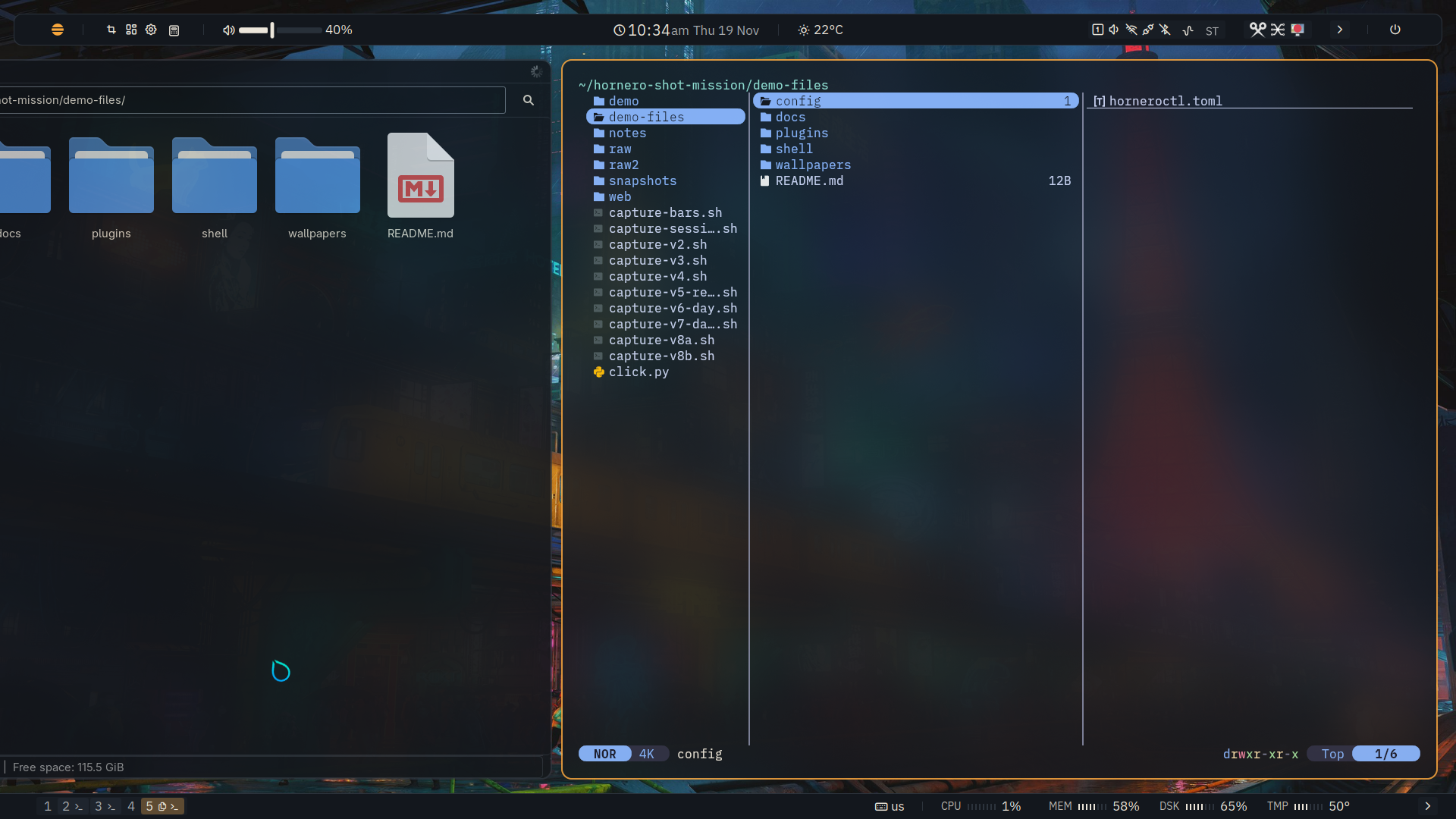
Thunar (left) and Yazi (right) over one staged demo folder. Running-desktop capture from the maintainer’s machine, 19 November 2026.
Yazi for keyboard-driven browsing
Press Super + E to open Yazi in a window from the configured terminal and
restore its last directory. The initial Hornero default is Kitty. Choose
Alacritty or Ghostty as the terminal and the same workflow follows that
selection. From inside an existing terminal, horneroctl apps terminal-file
opens Yazi in the current window; use --new-window for a separate terminal
window. The CLI can also open a directory or select a file:
horneroctl apps terminal-file --help
horneroctl apps terminal-file --cheatsheet
horneroctl apps terminal-file --path ~/Downloads
horneroctl apps terminal-file --new-window --path ~/Downloads
Hornero Config does not declare Yazi as a dependency. The configured terminal
and Yazi must both be installed for this workflow. Change the terminal with
horneroctl config default-apps. The public
dotfiles repository can install
Yazi and preview helpers for a personal Arch workstation; these are not
dependencies of the Hornero release composition.
Yazi keybindings can be queried from the Hornero CLI cheatsheet. In the
personal configuration, ~/.config/yazi/yazi.toml, keymap.toml, and
theme.toml set file openers, extra key bindings, and terminal colors. That
profile adds g directory shortcuts, D D to move items to trash, and
Alt + T to open a selection in Thunar. Preview support depends on optional
host tools such as ffmpegthumbnailer, poppler, and ImageMagick; a missing
preview does not mean the file is missing. Yazi upstream:
documentation. In the capture
above, Yazi’s preview column is empty because a folder is selected.
File opening and archives
exo-open launches the default file manager and terminal. handlr and
xdg-mime resolve MIME associations, such as which app opens a PDF or image.
Thunar delegates archive operations to compatible utilities and plugins
installed on the host; Xarchiver is one optional personal workstation choice.
Yazi can list and extract archives when the relevant preview and archive
tools are available. Hornero Config does not download missing helpers.
Inspect the current directory handler with:
horneroctl apps files --info
horneroctl config default-apps list
Change a file association using the instructions in Default applications. Hornero does not install or silently download archive or preview dependencies.