Extensions
Extensions add widgets, bar items, launcher results and panels to the desktop. Control Center > Extensions is where you browse the official catalogue and install, update, roll back, remove, enable and disable them. You do not need a terminal.
Development. This page describes the Extensions store on Shell
maintogether with the companion horneroctl and catalogue changes (November 2026). The full flow was exercised with a test extension in an offscreen run of the real page; it has not been checked on a physical desktop yet, and the wording and layout can still change.
What an extension can do
An enabled extension runs as you, with no sandbox. It can do anything your user account can. The catalogue lists what each extension declares it uses, and Hornero shows that before you install, but those declarations are review text: nothing enforces them. Only enable extensions you trust.
Installing and enabling are separate on purpose:
- Install copies the extension’s files after checking them against the catalogue’s SHA-256 hash. Nothing runs.
- Enable runs it. This is the step that needs your trust.
Browse the catalogue
The catalogue opens below your installed extensions. Each card shows:
- Signer: Who vouches for the code. Official extensions are reviewed by HorneroOS and pinned to a commit and a SHA-256 hash.
- State: Available, Installed, or Update available: 1.0.0 → 1.1.0.
- What it declares it uses: One line per program it may run, network host it may contact, shared data it reads (for example CPU use or the clock) and settings it stores. Programs and hosts are shown with the reason, such as “Lists your containers with podman ps (read-only)”.
- Changelog: The newest change; More shows the full history, compatibility and hashes.
- Screenshot: A capture from the catalogue, checked against its hash before it is shown.
Search filters the catalogue by name, author, category or placement.
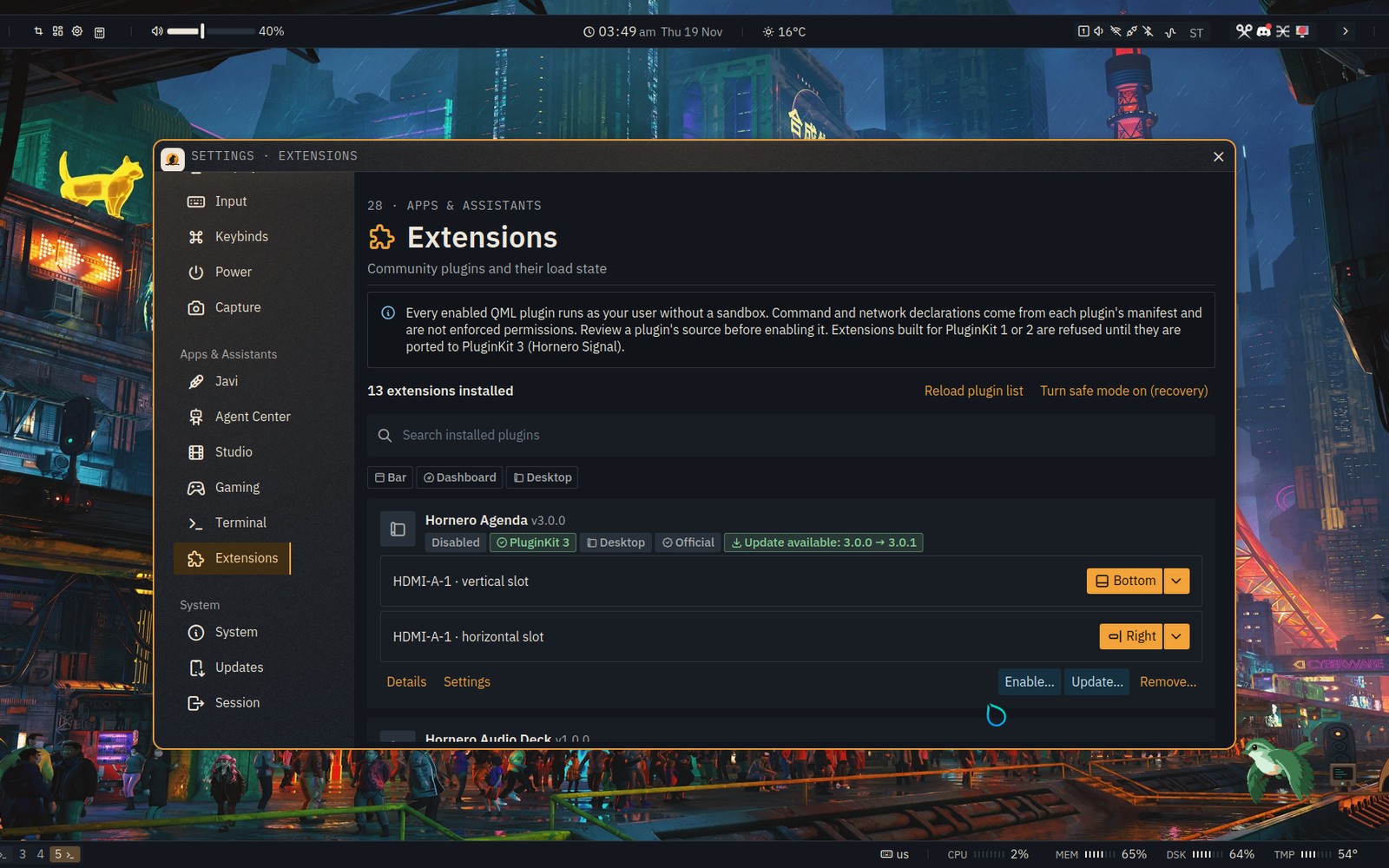
Settings → Extensions: the trust warning comes first, then each extension with its state and actions. Running-desktop capture from the maintainer’s machine, 19 November 2026.
Install, update, roll back, remove
Each action takes two clicks. The first shows what will happen in plain words; the second does it. Cancel backs out.
- Install…, then Confirm install: Copies the verified files. The extension stays off.
- Update…, then Confirm update: Replaces the files with the catalogue version and keeps the current one. If it was on, it stays on.
- Roll back…, then Confirm rollback: Restores the kept previous version. Offered only after an update.
- Remove…, then Confirm remove: Deletes the files, the kept previous version and the install record. Its settings are kept, so reinstalling brings them back.
- Enable…, then Confirm enable: Runs the extension.
While an action runs, a strip at the top of the page says what is happening and for how long, for example Installing Hornero Pomodoro… fetching the catalogue, verifying SHA-256, validating, copying · 3 s. The result appears on the card. If something fails, the card says what went wrong and what to do next, for example “The catalogue changed while you were reading it. Refresh it and review the new version.” A failed action never changes the rest of the desktop.
Install and update use the exact catalogue version you were reading. If the catalogue changed in the meantime, Hornero refuses and asks you to refresh, so you never get code you did not review.
Cost
Installed extensions show how long they took to load (for example Load 42 ms). Details adds the measured cost of the shared data they read, such as “system: 0.02% of a core (2 s, 0.4 ms, shared by 2)”.
Hornero does not show a per-extension CPU or memory number. All extensions run inside the one shell process, so there is no honest way to split it, and the page says so instead of guessing.
Preferences
Next to Refresh catalogue:
- Fetch on open (on by default): load the catalogue when the page opens. Turn it off and opening Extensions makes no network request; use Refresh catalogue when you want to browse.
- Show cost (on by default): show load times and cost lines.
- Store language: Shell language (default), English or Español for the catalogue’s permission lines, guidance and progress.
From a terminal
The page runs the same commands you can run yourself, for example
horneroctl plugin catalog install hornero-pomodoro --dry-run. Add --json to
any of them for machine-readable output. The JSON keys, exit codes and error
codes are listed in horneroctl’s
plugin lifecycle JSON contract.
If an extension breaks the desktop
Use Turn safe mode on (recovery) at the top of Extensions. No extension loads in safe mode, so you can disable or remove the broken one and turn safe mode off again. To write your own extension, see the extensions authoring guide.