Control Center map
The Control Center (also called Settings) holds every persistent desktop
setting. This page lists where things live. Pages are grouped into seven
categories in the left rail; the page id in the last column is what
horneroctl config gui --pane <id> opens.
Development. The category and page list below is read from the pane registry on the Shell
mainbranch (November 2026). Several pages have been recomposed for Hornero Signal and others are still being redone, so names and placement can still change. The registry and search are covered by Shell’s automated offscreen tests; the pages have not been validated visually in a virtual machine or on a physical desktop yet.
Open it and find things
- Open the Control Center from the launcher or a bar’s settings action.
From a terminal, use
horneroctl config guiand add--pane <id>to jump to a page. - Ctrl + , opens Find a setting. It searches page names, descriptions and common controls such as wallpaper, VPN, reduce motion, fonts or transparency; Enter opens the match. See Popups, focus and motion.
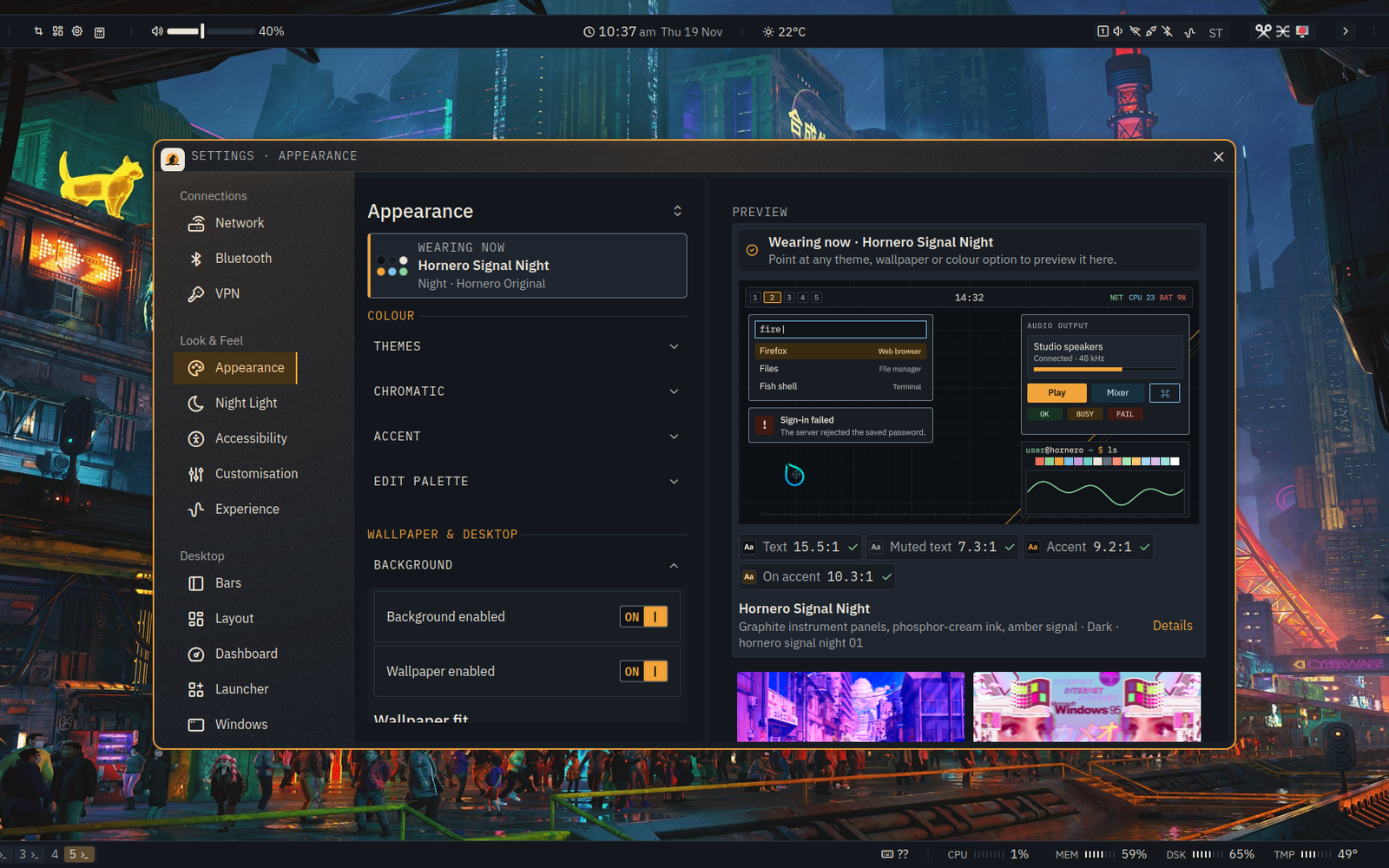
The Control Center with Appearance open: categories in the left rail, the selected page in the middle, a live preview on the right. Running-desktop capture from the maintainer’s machine, 19 November 2026.
Connections
| Page | What it covers | Id |
|---|---|---|
| Network | Wi-Fi, wired networks, connections | network |
| Bluetooth | Pair and manage nearby devices | bluetooth |
| VPN | Private network connections | vpn |
Look & feel
| Page | What it covers | Id |
|---|---|---|
| Appearance | Themes, wallpaper, fonts, icons, transparency | appearance |
| Night Light | Warm the display for the night | nightlight |
| Accessibility | Text size, reduce motion, animation speed | accessibility |
| Experience | Modes, deck, auto-switch, reset | experience |
Appearance is covered in Themes and appearance and Wallpapers. Experience is covered in Experience modes.
Desktop
| Page | What it covers | Id |
|---|---|---|
| Bars | Which entries each bar shows and their order | taskbar |
| Layout | Layout presets and Cockpit Clear styles | layout |
| Dashboard | Dashboard content and behaviour | dashboard |
| Launcher | How search and app launch work | launcher |
| Windows | Gaps, borders, focus and rules | windows |
| Lock screen | Privacy, fingerprint, idle locking | lockscreen |
Layout presets are described in Layouts. Reordering the sections of the active layout is under Bars.
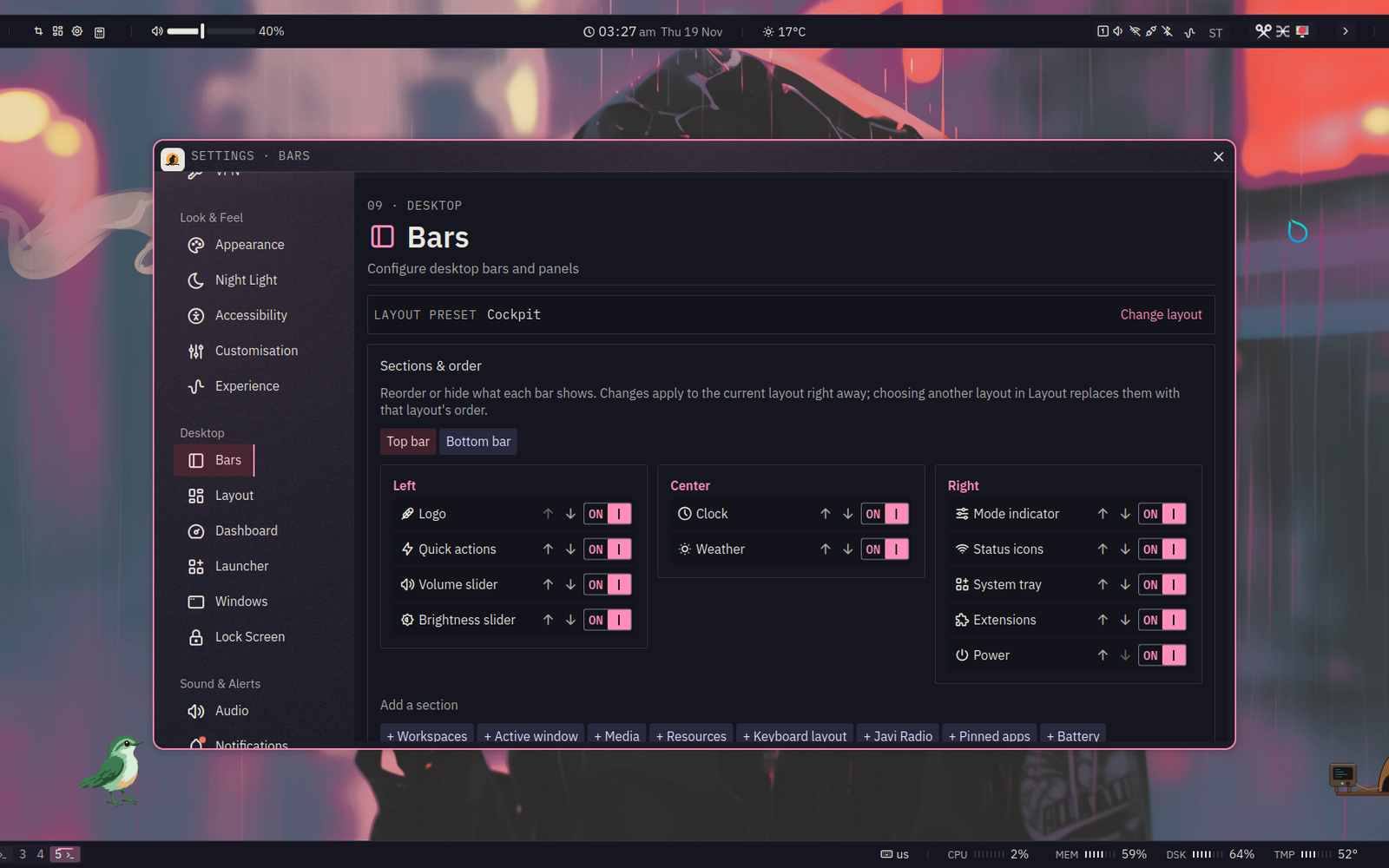
Settings → Bars: reorder or hide what each bar of the active layout shows. Running-desktop capture from the maintainer’s machine, 19 November 2026.
Sound & alerts
| Page | What it covers | Id |
|---|---|---|
| Audio | Choose devices and adjust sound | audio |
| Notifications | When and how notifications appear, history | notifications |
| On-screen display | Volume and brightness feedback | osd |
Devices
| Page | What it covers | Id |
|---|---|---|
| Displays | Displays, arrangement, brightness, window layout | displays |
| Input | Keyboard layout and input settings | input |
| Keybinds | View, search and rebind session keybinds | keybinds |
| Power | Battery and power behaviour | power |
| Capture | Screenshots, recording and capture backends | capture |
Apps & assistants
| Page | What it covers | Id |
|---|---|---|
| Javi | The desktop companion | companion |
| Agent Center | Coding agents on this machine and Javi state | agents |
| Studio | Creative workloads and applications | studio |
| Gaming | Gaming readiness, profiles and gaming mode | gaming |
| Terminal | The terminal used by Hornero launch actions | terminal |
| Extensions | Extensions, their trust and load state | extensions |
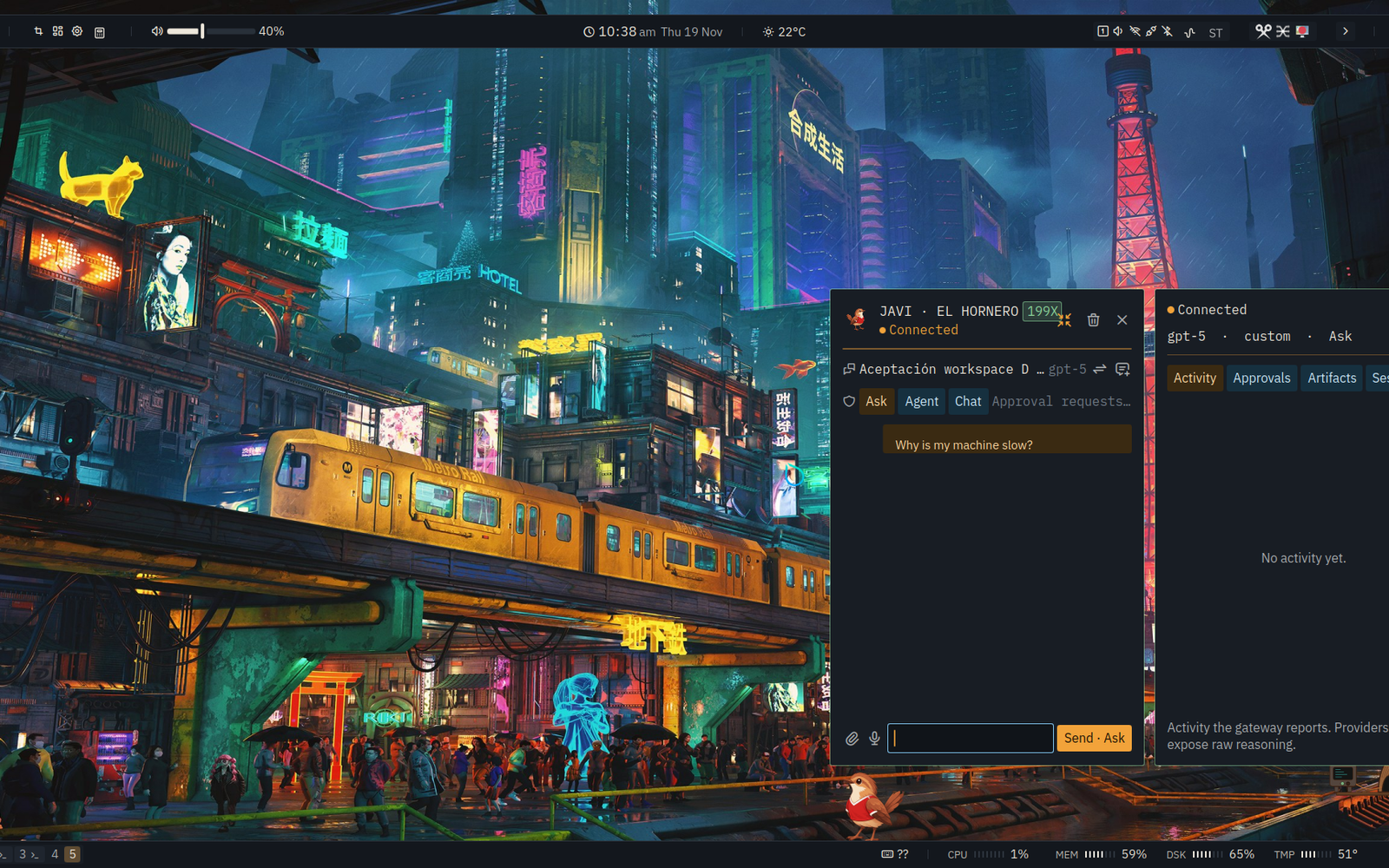
Javi, the desktop companion, idle with no activity yet: questions, approvals and artifacts appear in this panel. Running-desktop capture from the maintainer’s machine, 19 November 2026.
System
| Page | What it covers | Id |
|---|---|---|
| System | System information and diagnostics | system |
| Updates | Updates, backups, config snapshots, recovery status | updates |
| Session | Session menu behaviour and keybinds | session |
Where to find common tasks
- Change theme or wallpaper: Appearance. Colours always come from the theme; see Hornero Signal.
- Turn motion down: Accessibility, or Appearance → Animations.
- Switch Focus, Signal or Gaming: Experience.
- Move to another bar layout: Layout, or the Layout Picker with Super + Shift + B.
- Install, update, remove, enable or inspect an extension, or recover from a broken one with safe mode: Extensions. See Extensions and the extensions authoring guide.
- Update the system, restore Hornero settings from a config snapshot or backup, or check recovery readiness: Updates. HorneroOS has no system rollback today; see Updates and recovery.
- Check configuration problems: System → Diagnostics, or
horneroctl doctor.