Experience modes
An experience mode changes how the desktop behaves right now: how much it animates, how dense the bar is, which widgets sit on the desktop and whether notifications interrupt you. It never replaces your layout or your theme.
Development. Experience modes are on the
mainbranch of Shell since November 2026. current ISOs up to and including v0.2.0-preview32 do not have them. The behaviour on this page is covered by Shell’s automated tests (profile logic, deck layout and the Experience page, run headless and offscreen). It has not yet been validated visually in a virtual machine or on a physical desktop, so treat the look of each mode as unverified until that evidence is published.
The five modes
| Mode | Motion | Bar | Desktop |
|---|---|---|---|
| Focus | Reduced | Icons only | Empty |
| Everyday | Standard | Values | Your widgets |
| Signal | Full | Labelled | Instrument deck |
| Gaming | Off | Icons only | Empty |
| Studio | Standard | Values | Your widgets |
Everyday is the mode a fresh install starts in. Each mode is a bundle of fields you can inspect and change one by one (see Customise a mode).
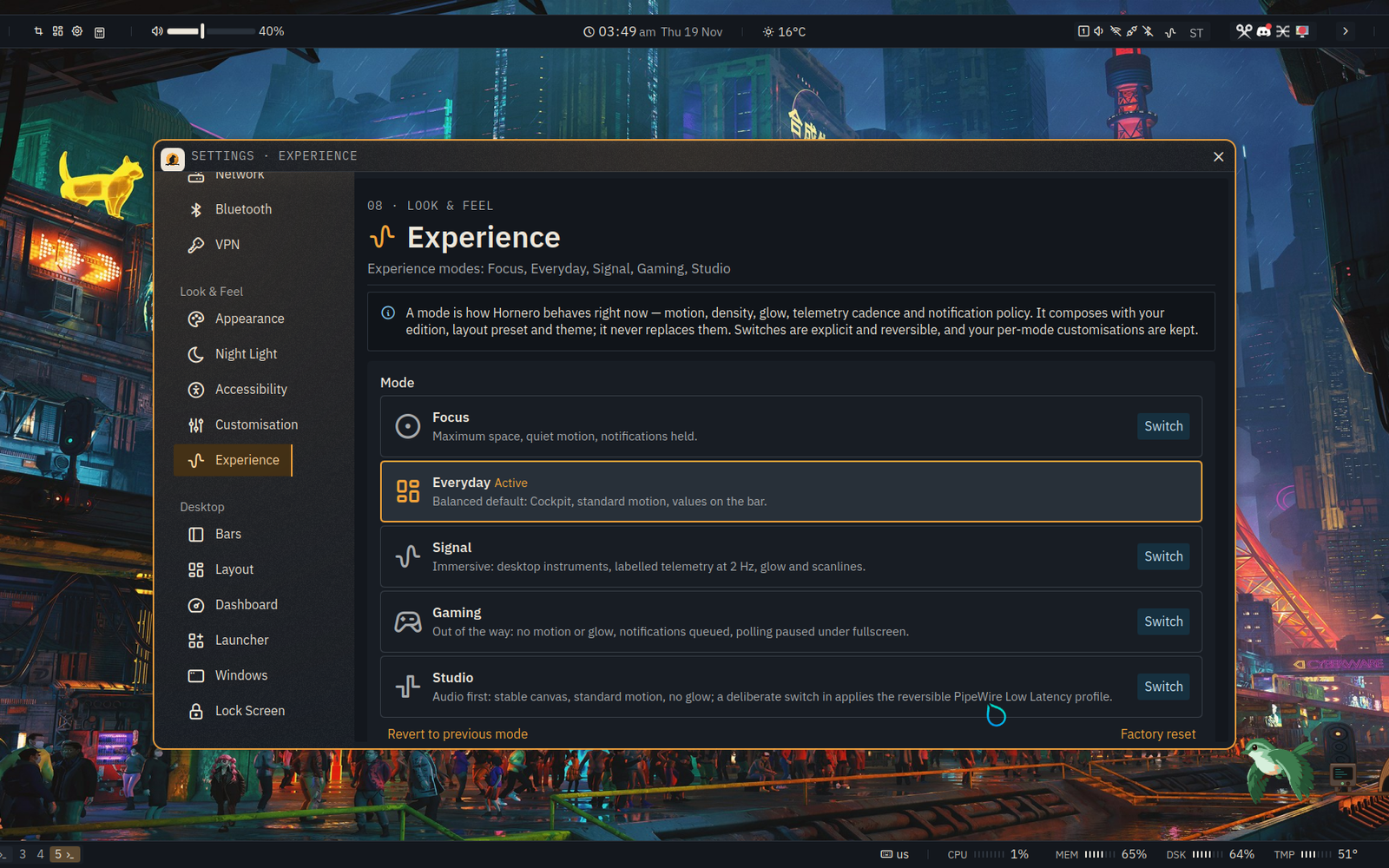
Settings → Experience: the five modes, what each one does, and one Switch per mode. Running-desktop capture from the maintainer’s machine, 19 November 2026.
What each mode does
- Focus reduces motion, shows only icons on the bar, holds notifications while it is active and keeps them quiet over fullscreen windows. No glow and no desktop widgets. Its preferred layout is Minimal Top.
- Everyday is Cockpit with standard motion and the values shown on the bar. Nothing is held and nothing is hidden.
- Signal is the mode where the richest telemetry lives: full motion, labelled bar entries, telemetry sampled at 2 Hz instead of 1 Hz, a faint luminous accent on traces and scanlines. The desktop shows the Signal instrument deck.
- Gaming turns motion off, queues notification popups while the mode is active, pauses telemetry under fullscreen and keeps the screen awake over fullscreen windows. It also suggests the performance power profile and enables the compositor tuning hook when the compositor supports it; a hook the system cannot honour is shown as unavailable, never faked. Desktop widgets are unloaded, so the desktop costs no processor or graphics time under a game. Its preferred layout is Gaming.
- Studio keeps a stable canvas for creative work: standard motion, no
glow, your own desktop widgets, notifications suppressed over fullscreen
windows. Its preferred layout is Studio. An opt-in setting asks the audio
stack for the low-latency profile while the mode is active and restores
your previous profile when you leave (it uses
horneroctl studio mode audio; see Studio).
Two guardrails cannot be overridden: glow and scanlines are always off in Focus and Gaming, and Gaming never animates. Glow and scanlines also stay off in day themes, in high contrast and at low motion levels, whatever a mode says.
How modes compose with everything else
Four independent choices combine. A mode never replaces the others:
| Choice | What it decides | Where you change it |
|---|---|---|
| Edition (Desktop, Studio, Gaming) | Which software and capabilities are installed | Installation; see Editions |
| Experience mode | How the system behaves right now | Settings → Experience |
| Layout preset | Which bars and rails exist | Layouts |
| Theme | Colours and wallpaper | Appearance |
A mode only switches on capabilities your edition has installed. A hook for a capability that is missing, such as compositor tuning on a compositor that does not support it, shows as unavailable.
Every mode names a preferred layout, but switching mode does not rewrite your bars by default, because a layout preset replaces the bar configuration. Apply the preferred layout from the Experience page when you want it, or switch on Apply preferred layout on switch so the layout follows the mode.
Switching modes
You switch explicitly. Any of these work:
- Settings → Experience. Pick a mode and press Switch. The Control Center map lists every page.
- The launcher. Search for Focus mode, Everyday mode, Signal mode, Gaming mode, Studio mode or Revert mode.
- The mode indicator on the bar. Cockpit and Cockpit Clear show a small
indicator (
FOC,SIG,GAM,STU) in every mode except Everyday. Clicking it opens the Experience page. - A script. The shell exposes the same actions over
qs ipc call experience ...; see the Shell experience reference.
A short toast confirms each switch (you can turn it off). Revert mode, also Revert to previous mode on the Experience page, returns to the mode you were in before the last switch.
Automatic switching
Automatic switching is off by default. When you turn it on in Settings → Experience (Switch to Gaming automatically for fullscreen games), the shell enters Gaming while a fullscreen window that looks like a game is focused (Steam games, Gamescope and Windows executables by default; you can list your own application-id patterns) and returns to your previous mode when that window stops being fullscreen.
- Detection is local: the shell only looks at the focused window’s application id and fullscreen state. Nothing leaves the machine.
- It only leaves a mode it entered itself. If you picked Gaming yourself, it stays until you change it.
- The toast for an automatic switch says so, and Revert mode undoes it in one action. Turning automatic switching off while it is active also reverts.
The Signal instrument deck
In Signal mode the desktop shows a deck of up to six live instruments on two rails, with the middle left open for windows:
| Priority | Instrument | Shows |
|---|---|---|
| 1 | System Insight | Processor, graphics, memory and storage |
| 2 | Network Scope | Download and upload traces |
| 3 | Audio Deck | Playback and the audio spectrum |
| 4 | Calendar | The month and the time |
| 5 | Agenda | Date facts, week and year progress |
| 6 | Moon Phase | The approximate phase |
- The deck is laid out per display and never covers a bar. What does not fit is dropped by priority rather than overlapped: a 1366×768 display shows four instruments, a 3440-pixel-wide ultrawide shows all six.
- Values are never invented: a sensor your hardware lacks shows as unavailable.
- The deck only uses the six first-party extensions when they are installed and trusted. It never enables them in Extensions. A missing, untrusted or failed instrument is listed on the Experience page and left out.
- The luminous accent is shared: at most three traces glow at a time, and only in Signal mode with a dark theme and motion allowed.
Turn an instrument off for Signal or restore the factory deck (Reset deck) from Settings → Experience, and move or resize instruments with Edit widgets. Moves are stored for Signal only and leave your Everyday desktop widgets alone.
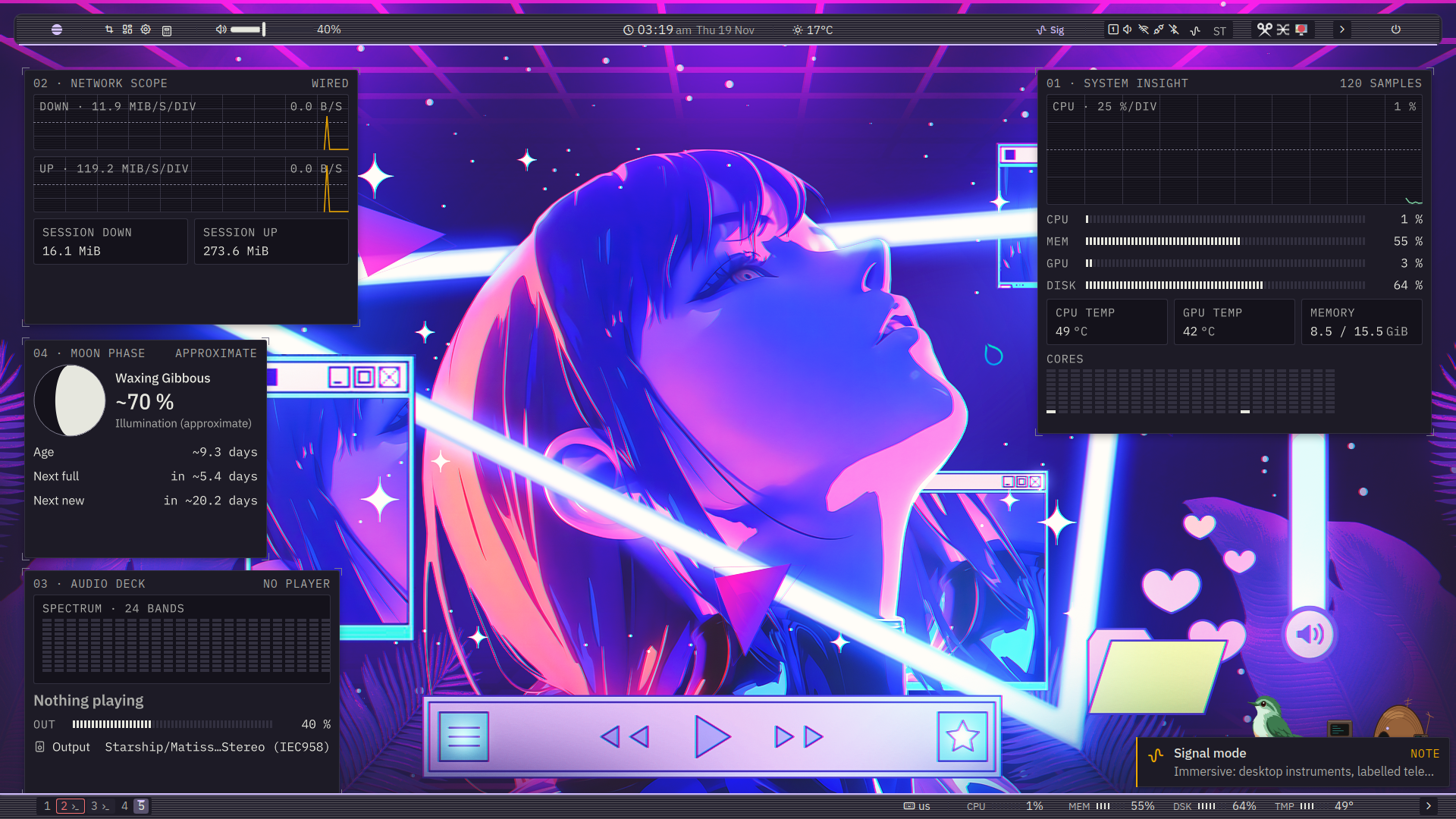
The Signal instrument deck at rest — the audio deck reads “Nothing playing” because nothing is. Running-desktop capture from the maintainer’s machine, 19 November 2026.
Customise a mode
Settings → Experience lets you change a mode’s motion, bar density, glow, scanlines, telemetry rate, desktop widgets, notification holding, fullscreen suppression, preferred layout, idle and power hints and hooks. Your changes:
- are stored per mode and survive switching modes and restarting the shell;
- never change the other modes;
- are ignored for the two locked guardrails above.
Reset customisations returns one mode (and its deck) to the factory profile.
Reset to the factory desktop
Factory reset on the Experience page (it asks you to confirm) selects Everyday, applies the Cockpit layout and the Signal Night theme. It keeps your per-mode customisations; use Reset customisations to clear those.
Reduced motion and high contrast
Experience modes sit on top of your accessibility choices. If you turn on Reduce motion (or your desktop-wide animation setting asks for it), the motion level is forced to off whatever the mode says. High contrast keeps the Signal High Contrast palette in every mode. See Popups, focus and motion for the four motion levels.
Learn more
- Experience modes architecture — how profiles, state and the deck are built.
- Layouts — the layout catalogue.
- RFC 0001 — the design authority, section 5a.