Bar layouts
Layouts change where desktop bars, rails, and docks sit. They do not change the window arrangement: that is controlled by the compositor’s window-layout profile. This keeps two useful choices separate — where shell controls live and how windows are arranged.
Development. The 14-preset catalogue, the Cockpit default and Cockpit Clear are on the
mainbranch of Shell and Config since November 2026. current ISOs up to and including v0.2.0-preview32 ship the earlier fifteen-preset catalogue. The catalogue is covered by Shell’s automated tests (preset schema, placement and bar behaviour, run headless and offscreen). It has not yet been validated visually in a virtual machine or on a physical desktop, and Cockpit Clear has not been checked over real wallpapers on a real host.
Open the Layout Picker with Super + Shift + B. Its topology previews show whether a preset uses a side rail, one or two horizontal bars, clear surfaces, separate islands, or a dock. Select a preview to apply it; use Escape to leave without applying.
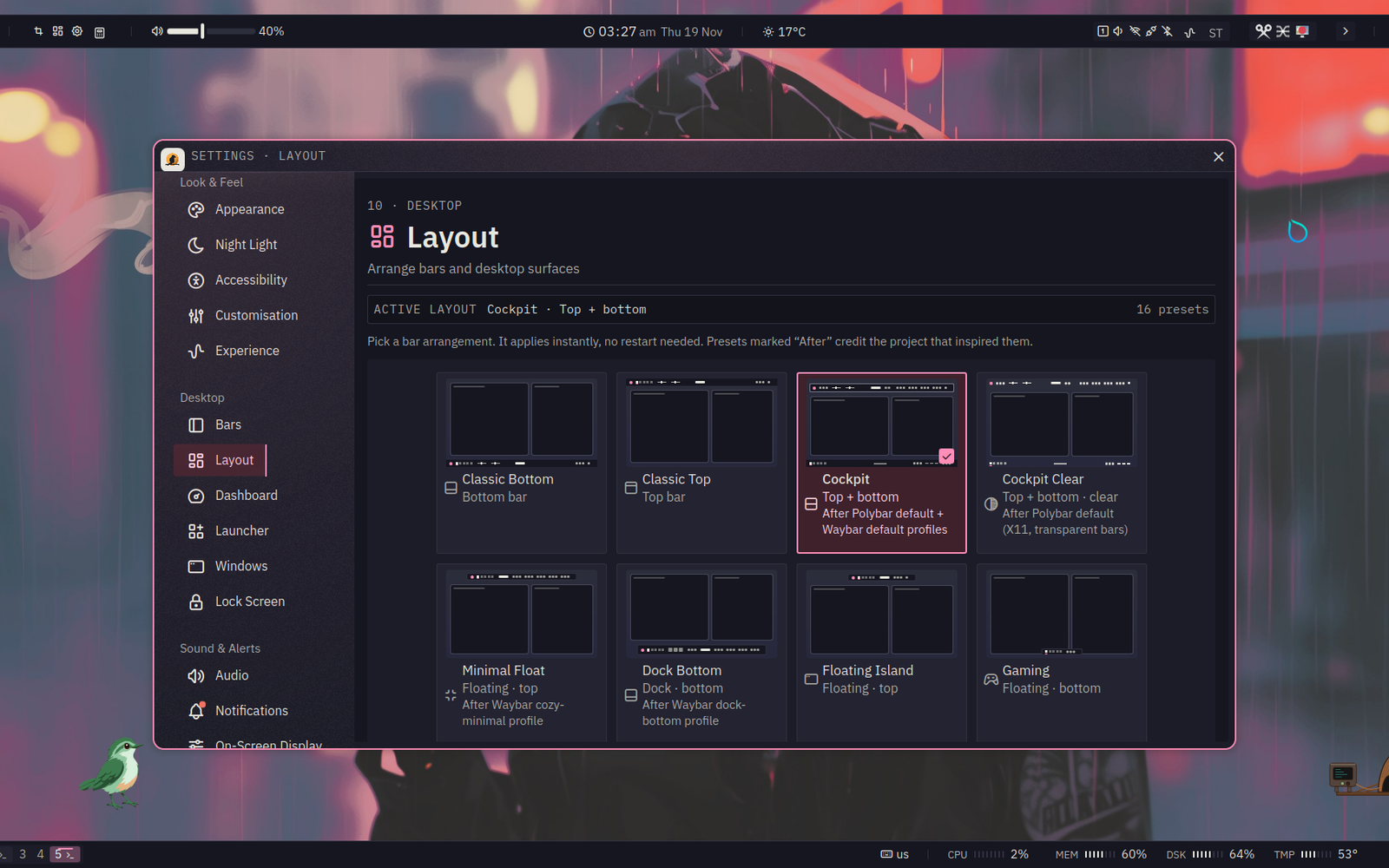
Settings → Layout: pick a bar arrangement; it applies at once. This capture is from the maintainer’s machine (19 November 2026) and predates the catalogue trim described below, so its grid still lists presets that have since been removed.
Presets
Hornero ships fourteen presets. Cockpit is the factory default on every edition and after a factory reset.
| Family | Presets |
|---|---|
| Rails | Hornero Left, Hornero Right, Minimal Left |
| Horizontal bars | Minimal Top, Classic Top, Classic Bottom |
| Multi-surface | Cockpit, Cockpit Clear, Horizon, Islands, Minimal Float |
| Docked and focused | Dock Bottom, Studio, Gaming |
What each one is for:
- Cockpit — two bars: act on top, know below, uninterrupted work in the middle. A 36 px inset top rail holds the launcher mark, quick actions, the clock, status icons, tray and power. A 30 px attached bottom strip holds workspaces, the active window and media, and resource meters.
- Cockpit Clear — the same anatomy with no bar background at all. Controls and telemetry sit straight on the wallpaper (details).
- Horizon — one slab carries every control and reading; workspaces rest on a clear line below.
- Islands — three floating islands: controls, time, status.
- Minimal Float — a soft floating top ribbon with workspaces, the time
and a few tools (preset id
cozy-minimal, formerly named Cozy Minimal). - Classic Top and Classic Bottom — a traditional bar with the full set of status icons.
- Minimal Top and Minimal Left — workspaces and the clock, or workspaces and power, and little else.
- Dock Bottom — a bottom dock with launcher, workspaces, pinned apps, tools and status.
- Studio — a top bar for creative work: media and audio at hand and a stable reserved canvas.
- Gaming — a minimal bottom bar with no logo.
- Hornero Left and Hornero Right — a full-featured sidebar on the left or right edge. Their composition is inspired by Caelestia’s layout, the project HorneroOS Shell descends from, and is kept here with attribution. They use the Signal look like every other preset.
Polybar and Waybar influenced some topologies; the shell uses one Quickshell layout system rather than separate historical bar implementations.
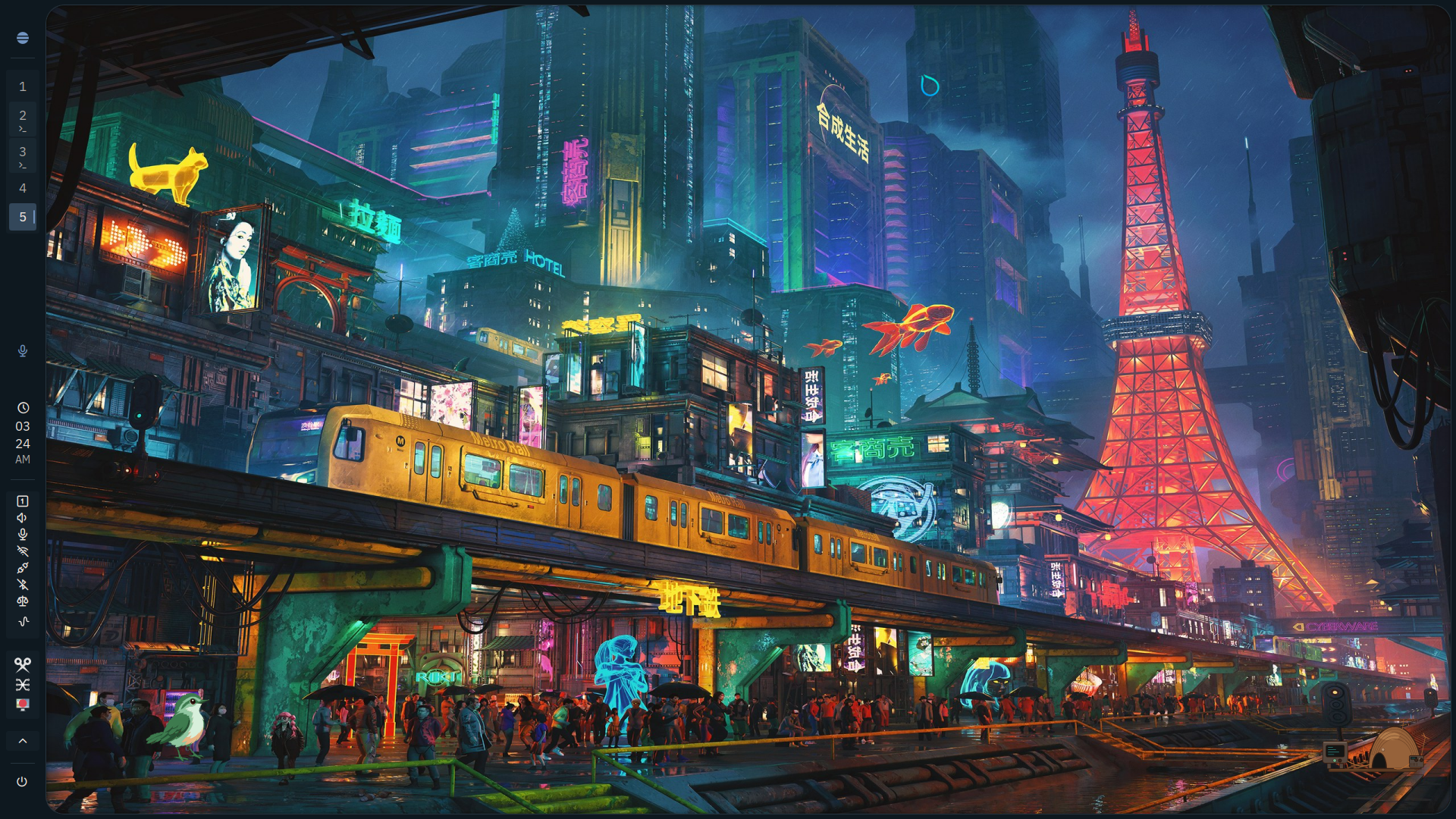
Hornero Left applied: every control sits on the left rail and the rest of the screen is left to windows. Running-desktop capture from the maintainer’s machine, 19 November 2026.
Presets that were removed
The catalogue shrank from fifteen to fourteen because two presets repeated others: Floating Island duplicated Minimal Float and Productivity duplicated Minimal Top. Cozy Minimal was renamed Minimal Float.
Nothing breaks if you were using one of them. Applying a preset copies its bars into your own configuration, so a desktop that already uses a removed preset keeps working unchanged; only the picker no longer lists it. If an Experience mode named a removed preset as its preferred layout, the shell migrates that choice once (Floating Island to Minimal Float, Productivity to Minimal Top). Re-apply a layout from the picker whenever you want to move.
Cockpit Clear
Cockpit Clear draws no bar background: no fill, tint, blur, edge shade or shadow, in every mode including high contrast. Legibility comes only from the foreground:
- Adaptive ink. The shell looks at the wallpaper under each bar entry and picks light or dark ink, whichever contrasts more. It only chooses between the theme’s own night and day inks and never adds a background behind the bar, also with the optional Chromatic theme. Video wallpapers and unreadable images fall back to the theme’s ink.
- Foreground styles. Pick Auto, Outline, Shadow or Contrast in the Layout Picker or Settings → Layout. Auto adds a thin halo and, over busy areas, a soft shadow. Shadow falls back to Outline when it cannot reach 3:1 contrast. Contrast adds a heavier halo and bolder weight, and High Contrast always uses it.
- Popouts stay opaque. Menus and panels opened from a clear bar are ordinary solid Signal panels with their own border; they float a few pixels away from the bar.
Because the legibility rules are measured against wallpapers, an unusual wallpaper can still read poorly. If a bar feels hard to read, switch the style to Contrast or apply a solid layout such as Cockpit.
The mode indicator and workspace cells
Cockpit and Cockpit Clear show a small indicator in the top rail’s end
group when an Experience mode other than Everyday is
active (FOC, SIG, GAM or STU beside the mode glyph). Clicking it
opens Settings.
Workspace indicators are small rectangles, not pills. Each state differs in at least two cues, so colour is never the only signal: the active workspace has a raised cell and an amber bar on the edge facing your windows, an occupied one carries a small tick, a workspace visible on another monitor has a thin line, and an urgent one turns alert-red until you visit it.
Apply from a terminal
Use the CLI to list the available presets and inspect the current choice:
horneroctl shell preset list --full
horneroctl shell preset current
horneroctl shell preset apply cockpit-clear --dry-run
horneroctl shell preset apply cockpit-clear --yes
Applying a preset replaces the settings that the preset owns. It keeps unrelated shell preferences. Keep personal edits in the user configuration, not inside a package-owned preset. Reorder, hide or add sections on the active layout from Settings → Bars.
When a bar covers a window
Attached bars and docks reserve edge space. Floating surfaces normally overlay the desktop; some presets explicitly reserve space to preserve readability. Try another preset before editing geometry. For the schema, edge behavior, entry options, per-monitor settings, and bar topology, see the layout contract in the Shell repository. The current Layouts page on the website shows captures and short descriptions; check its date before relying on the screenshots, since earlier captures show the previous appearance.