Post-install: your first session
Your first half hour on a fresh HorneroOS install, in order. Nothing here requires a reboot until an update tells you one is needed.
1. Check the system as installed
horneroctl doctorFix or note anything it reports before changing settings. The doctor is read-only: it reports the Wayland session, terminal, configuration paths and themes it finds.
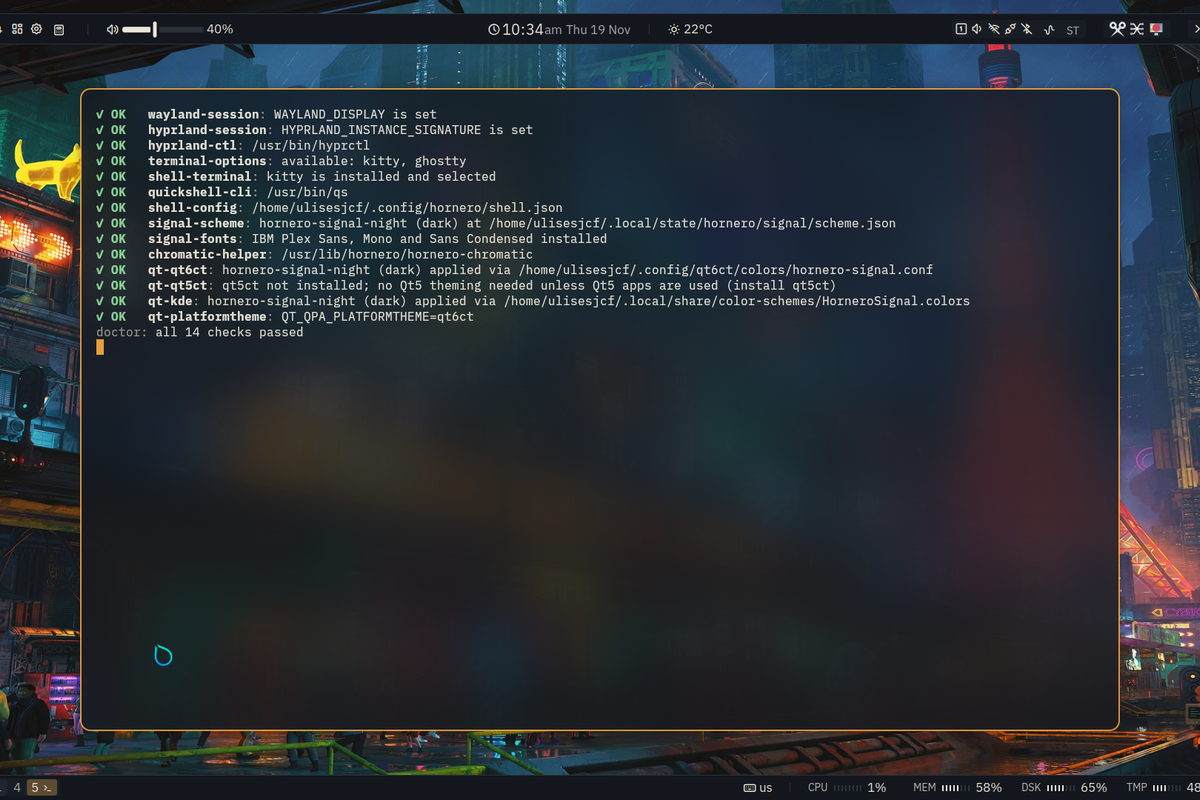
Example doctor output on the maintainer’s machine — the paths
shown are that machine’s home directory; yours will differ. Capture,
19 November 2026.
2. Check for updates before installing anything
horneroctl package check
horneroctl package upgrade --dry-run
Read the pending list. An upgrade is a full Arch system upgrade and
creates no system snapshot; see
Updates and recovery for what
that means before you confirm with --yes.
3. Save your starting configuration
horneroctl config snapshot create --dry-run
horneroctl config snapshot create --yes
horneroctl config snapshot list
A configuration snapshot saves Hornero settings only. It is not a system snapshot and cannot undo a package upgrade.
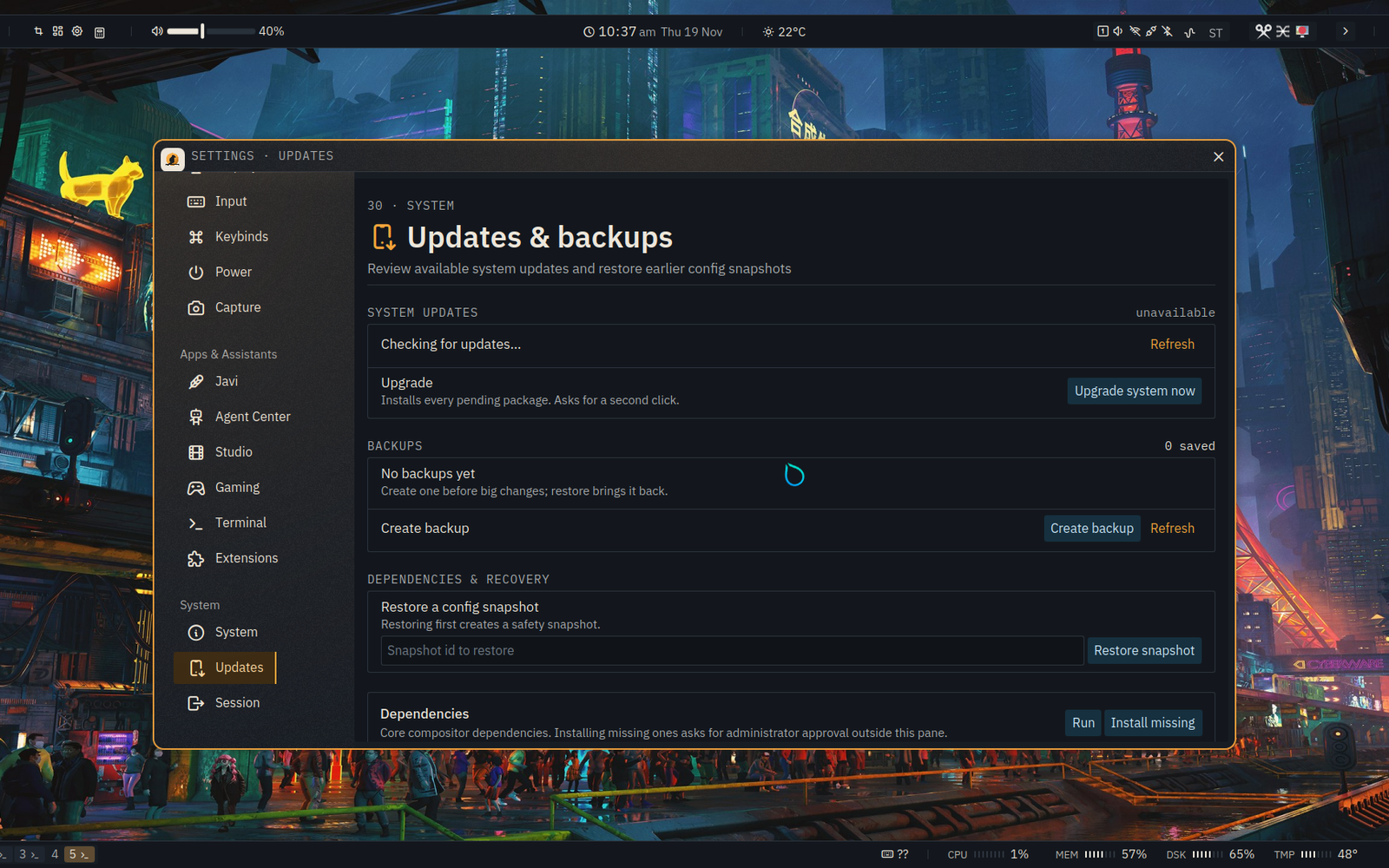
Settings → Updates on a machine with no backups saved yet. Nothing on this page is a system rollback. Running-desktop capture from the maintainer’s machine, 19 November 2026.
4. Pick the mode for the work in front of you
horneroctl mode list
horneroctl mode set everyday
horneroctl mode status
Use horneroctl mode set studio or horneroctl mode set gaming
when that is the work you are about to do. Modes are described in
Experience modes.
5. Walk the Control Center once
Open Settings and check Network, Displays, Sound and Updates in that order. Confirm the display arrangement matches your monitors before tuning appearance.
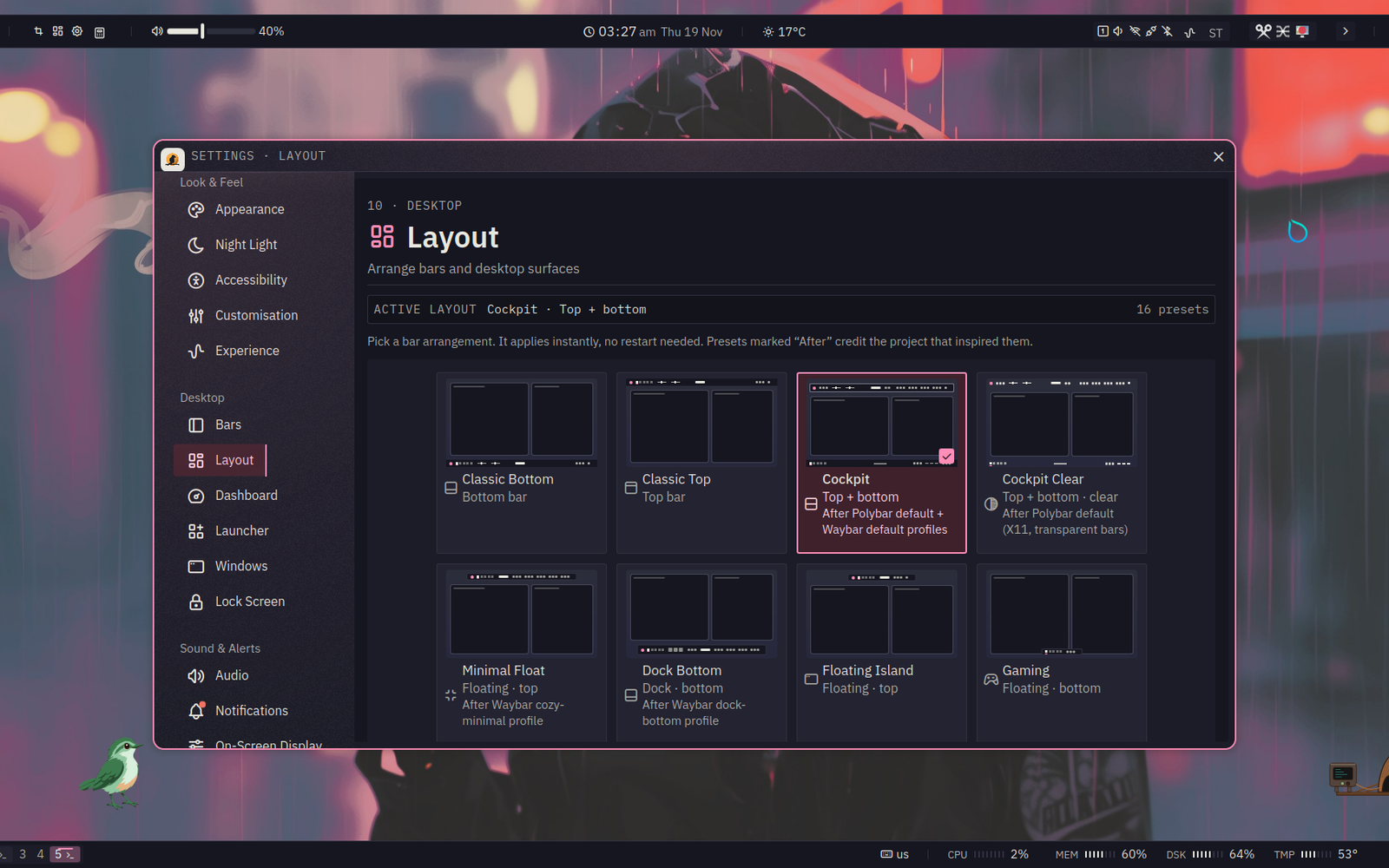
Settings → Layout: pick a bar arrangement; it applies at once. Capture from the maintainer’s machine, 19 November 2026, reused from Layouts.
6. Install applications from the catalogue
Install optional applications through the package workflow your install already uses, and check status in the application catalogue first: it separates installed, opt-in and planned software so a planned launcher is never presented as installed.
If something is already wrong
Go to Troubleshooting by symptom and start from the symptom, not from a fix you found elsewhere.