Hornero Chromatic: colours from your wallpaper
Hornero Chromatic is an optional way to colour the desktop. Instead of picking a ready-made theme, you let Hornero read a wallpaper, an image or a colour you choose, and build a complete Hornero Signal palette from it. The curated themes (Signal Night, Signal Day and Signal High Contrast) stay the factory default and the fallback whenever anything goes wrong.
Development. Chromatic is on the
mainbranches of the Shell andhorneroctl. current ISOs up to v0.2.0-preview32 do not include it. The accent override (see Accent override) is still in review and is not onmainyet.
What it is and what it is not
- It colours the desktop only. It changes hue and chroma inside the fixed Signal structure; shapes, type, glyphs and motion do not change.
- It is not Material You. There are no Material roles and no external colour library: one native engine builds the Signal roles directly.
- Nothing is applied until you say so. The preview is in memory; cancelling writes nothing.
- A wallpaper can never make the interface unreadable. Every palette is checked against the contrast gates before anything is written, and a palette that fails is not applied.
- Cockpit Clear bars stay fully transparent. Chromatic may change their text colour, never add a backdrop, tint or blur.
Try it
Open Settings → Appearance → Chromatic. The section draws a sample desktop (bar, popout, card, launcher row, notification, terminal colours) using the candidate palette, so you see the result before applying it.
- Choose a source: the current wallpaper, another image, one or two colours, or the Signal house palette.
- Look at what Hornero inferred (mode, variant, contrast, a short description such as “Dark · balanced · warm amber · calm”). Each item shows its reason and has a control that overrides it; Auto means follow the image.
- Preview on the desktop. Cancel or Escape restores the previous palette and writes nothing.
- Apply when you like it.
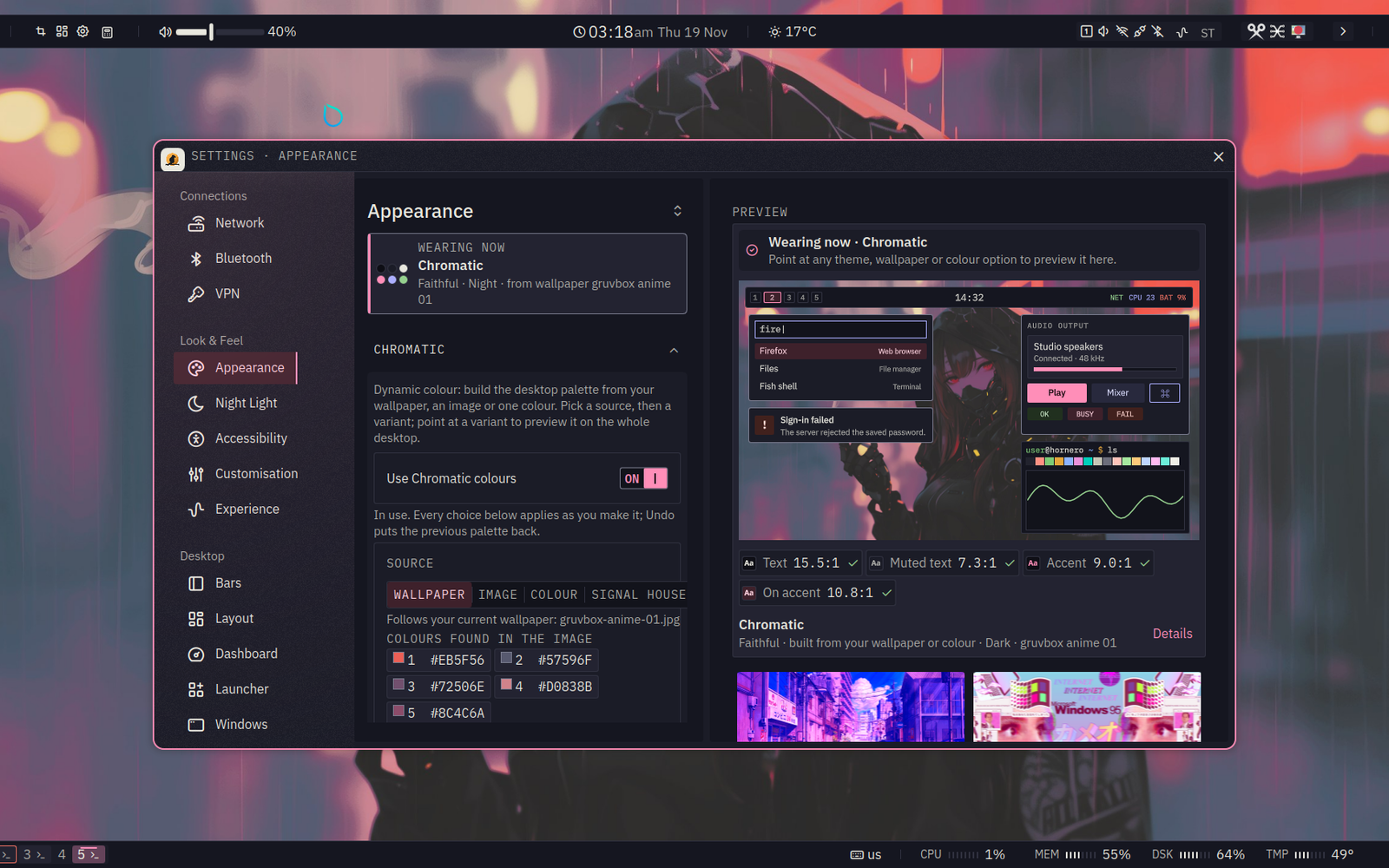
Chromatic reading the current wallpaper: sampled colours on the left, the previewed palette and its checked contrast ratios on the right. Running-desktop capture from the maintainer’s machine, 19 November 2026.
From a terminal, the same flow is:
horneroctl appearance chromatic preview --seed "#D98A3A"
horneroctl appearance chromatic apply --variant vibrant --dry-run
horneroctl appearance chromatic apply --yes
preview and --dry-run never write. apply needs --yes.
Sources
- Wallpaper (default) — the current wallpaper. Still images, animated
GIF, WebP and APNG, and video files all work; video needs
ffmpeginstalled, and without it that source is reported as unreadable. - Image — any other image file:
--source image:PATH. - Colour — one or two
#RRGGBBcolours (--seed, up to two). The first becomes the main accent and the second the secondary accent. The Control Center offers ranked colour chips taken from your image, a hue and intensity picker, and a hex field. - Signal house — the factory Signal hues; only the surface tint follows the wallpaper.
If a colour you chose does not pass the contrast gates, Hornero moves it the smallest amount needed and tells you which colour changed and why.
Variants
A variant sets the character of the palette:
- Balanced (default) — quiet surfaces and one confident accent; the Signal Night or Day feel in the image’s hue.
- Vibrant — stronger accents and slightly tinted chrome.
- Expressive — a second accent from a more distant hue, and more colourful status colours.
- Faithful — the accent is your colour itself when it passes the contrast gates, and surfaces take the image’s dominant hue.
- Muted — near-neutral chrome with soft accents.
- Monochrome — neutral chrome and text; accents only whisper the hue. Status colours keep their meaning.
- High contrast — the strictest contrast level, a deeper background, brighter text, no glow and no translucency.
- Neon — saturated accents and a stronger glow. Dark only: asking for light returns dark and says why.
horneroctl appearance chromatic variants lists what the installed engine
offers. With variant Auto, Hornero picks among Balanced, Vibrant,
Expressive and Muted from how colourful the image is. It may suggest Neon
for dark images with bright neon colours, but never applies it by itself.
Beyond the variant you can adjust:
- Mode — Auto, Dark or Light. Auto follows how light the image is and does not flip back and forth when a wallpaper folder rotates.
- Contrast — Auto, Standard, Boosted or Maximum.
- Surface depth — Standard or Deep.
- Intensity — scales colourfulness from 0.5 to 1.5.
- Hue shift — rotates the chosen colours from -180 to 180 degrees.
- Per-mode preference — keep a different variant for dark and light.
Following the wallpaper
The recolour policy decides what happens when the wallpaper changes while Chromatic is active:
- Off — nothing changes until you apply again.
- Auto — the palette is regenerated for the new wallpaper
(
horneroctl appearance chromatic follow). - Ask — Hornero shows a preview and lets you apply or Keep current.
Palette changes fade smoothly. The fade is instant under reduced motion, the Gaming experience mode and high contrast, and you can switch the smooth transition off in the section.
Saved palettes
A palette you like can be kept: save the live palette as a named theme, and it appears next to the other themes. You can also rename, delete, export it to a file and import a theme file from someone else. Imports are checked against the same contrast gates and the free-text fields are validated before anything is installed.
horneroctl appearance chromatic list
horneroctl appearance chromatic save --id amber-dusk --name "Amber dusk" --yes
horneroctl appearance chromatic export --output amber-dusk.json
horneroctl appearance chromatic import amber-dusk.json --yes
Accent override
Chromatic and the curated themes choose the main accent for you. The accent
override lets you pin your own accent colour, separately for dark and light
mode and per experience mode, with an optional set of soft warm presets and a
Reset that returns to the theme’s own accent. It is pending review
(shell#614); until it ships,
use the Colour source (--seed) with the Faithful variant to build a
palette around the accent you want.
Roll back
Every apply is transactional: Hornero snapshots the current state, writes atomically and restores the snapshot if anything fails. You can also go back yourself:
horneroctl appearance chromatic history
horneroctl appearance chromatic rollback --dry-run
horneroctl appearance chromatic rollback --steps 2 --yes
history lists the newest ten snapshots. rollback restores the state
--steps applies back (default 1). To leave Chromatic altogether, run
horneroctl appearance chromatic off --yes: it applies the fallback theme
for the current mode. You can also just pick any curated theme.
Accessibility
- High contrast (Settings → Accessibility) is protected: it always shows the curated Signal High Contrast palette and turns off translucency, whatever Chromatic produced. The section tells you when it is active.
- Contrast levels — Standard follows the Signal gates; Boosted raises text to 7:1 and Maximum requires 7:1 for every text pair. The focus ring reaches 3:1 on every surface, and status meaning never depends on hue alone.
- Translucent surfaces keep their text readable over your actual wallpaper by raising their opacity when the image is busy.
- Reduced motion makes palette changes instant.
Troubleshooting
horneroctl appearance chromatic doctor
horneroctl appearance chromatic status
doctor checks the engine helper, ffmpeg, the app templates, saved state
and the lock. The section reports plainly when the helper is missing, an
image is unreadable, a video needs ffmpeg, there is no wallpaper, or a
palette failed the gates. After any change,
horneroctl appearance doctor verifies that the live scheme is valid.
For how Chromatic fits the rest of the appearance system, see Appearance system. The design is RFC 0002.